

One concern I occasionally hear from people using password managers is how to create a readable paper copy of their passwords for emergency purposes. While I generally recommend keeping your passwords stored securely in Bitwarden, there may be situations where you want a printed backup for your records, estate planning, or digital legacy preparations.
Unfortunately, Bitwarden’s export options aren’t particularly printer-friendly. The same goes for 1Password, actually. Fortunately, there’s a simple workaround. By exporting your vault to KeePass and then creating an HTML export, you can generate a much cleaner and more readable document that’s suitable for printing.
In this guide, I’ll walk you through the entire process step by step.
This guide assumes you have the Bit Warden desktop app installed and you’re logged into your account.
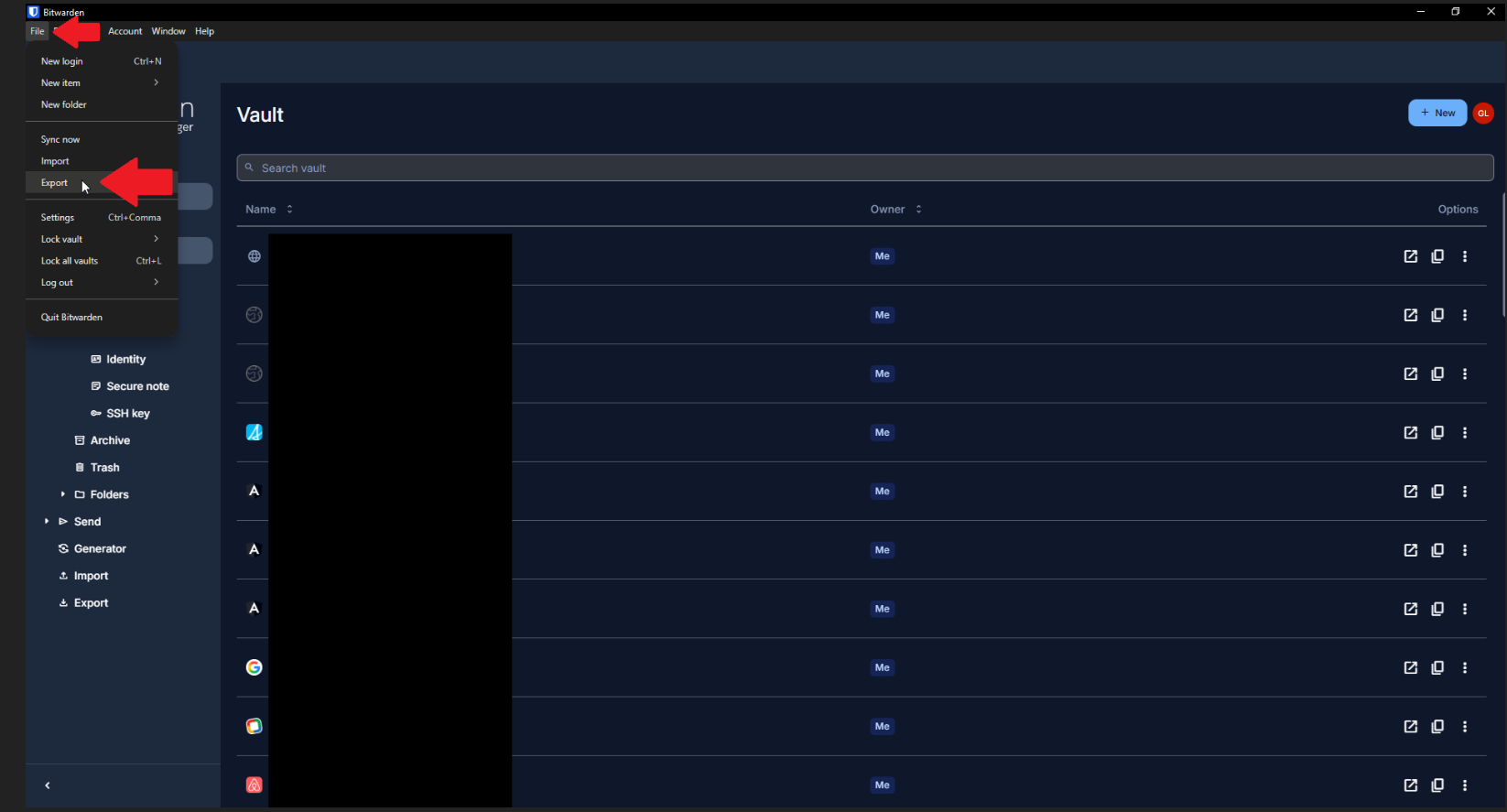
In the Bit Warden desktop app, click FILE, then EXPORT.
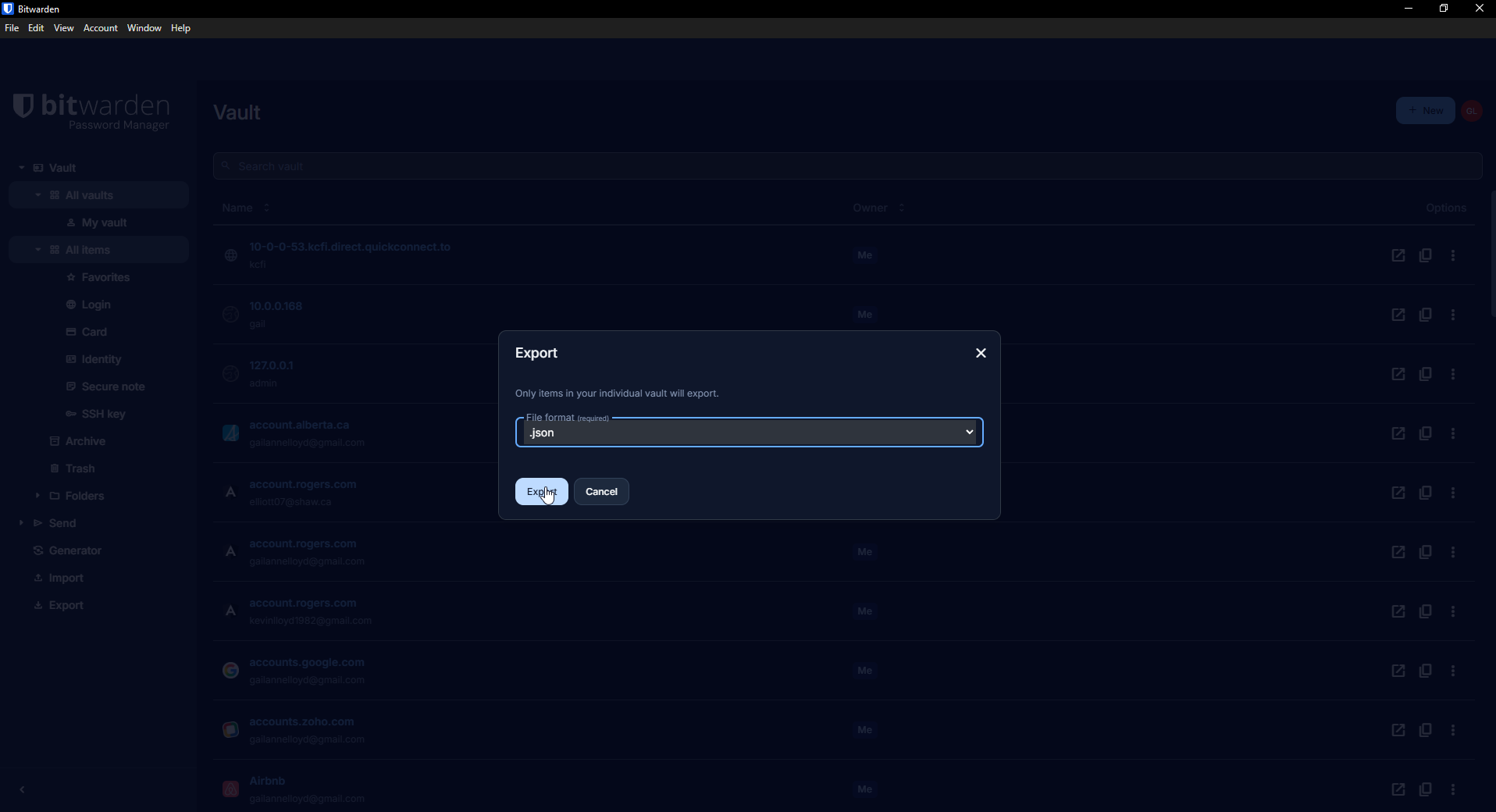
Leave the default option as .JSON, and click the EXPORT button. Save the file to a location where you can easily find it.
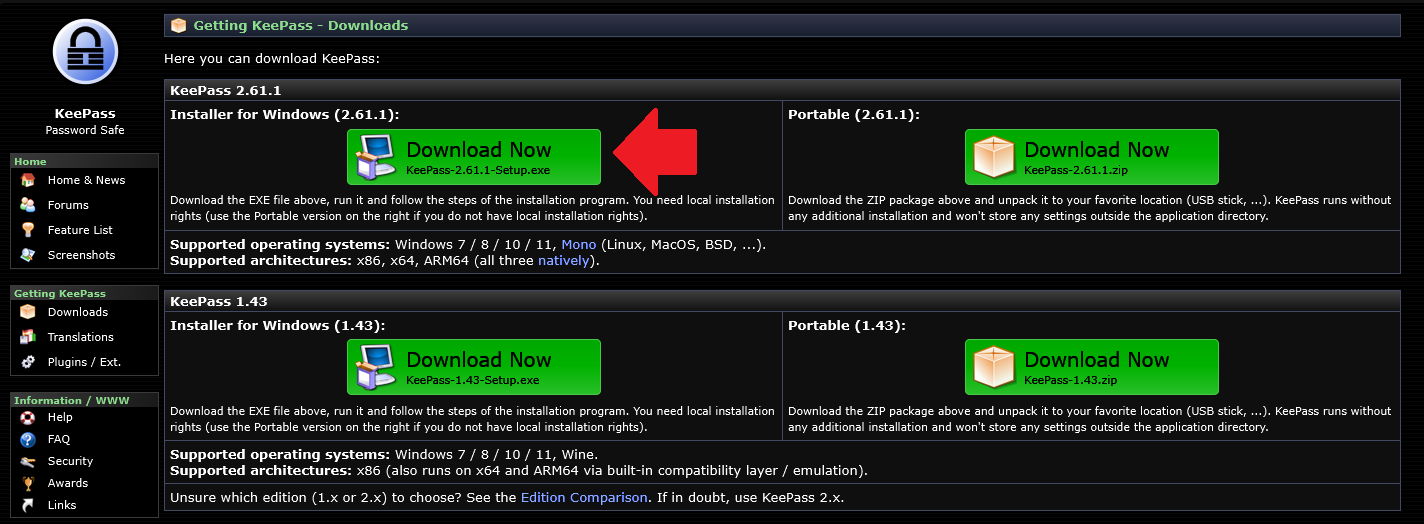
First, download and install KeePass 2.x from https://keepass.info/download.html
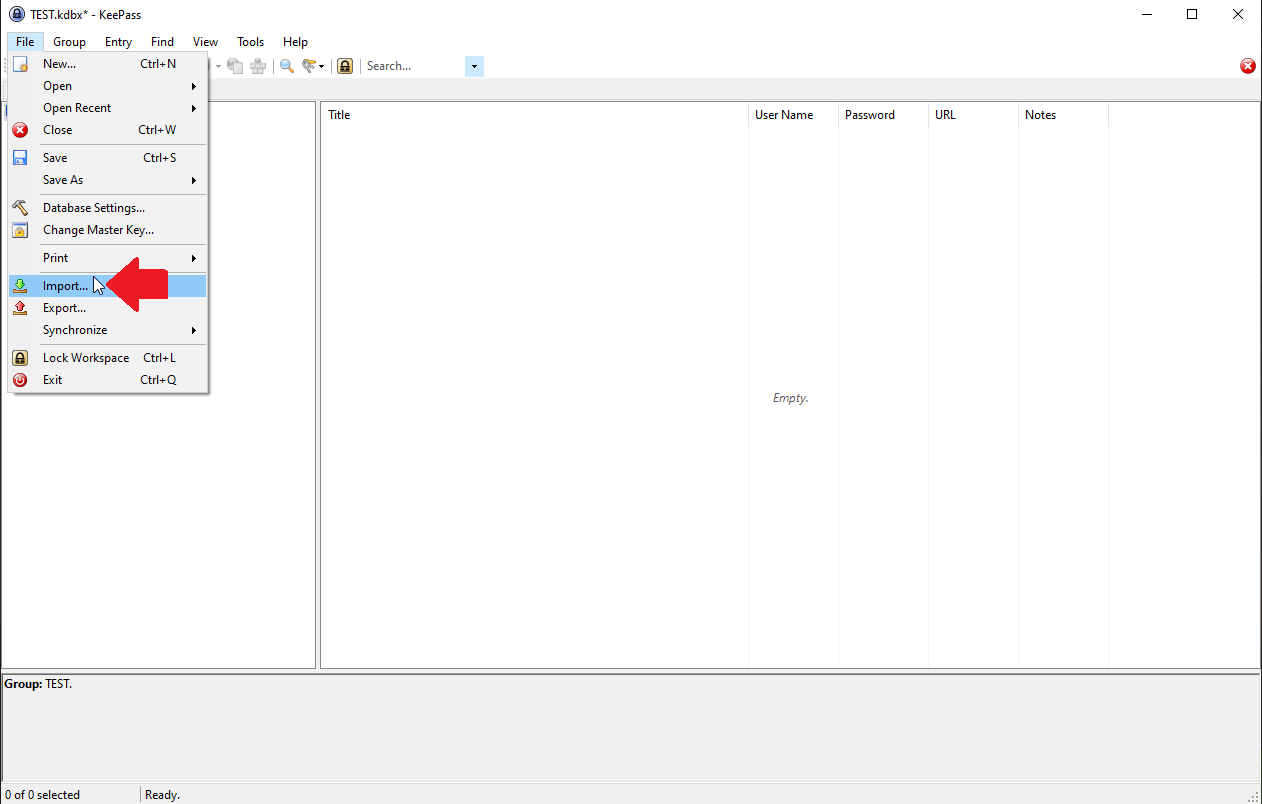
Open KeePass (2.x), click FILE, then IMPORT.
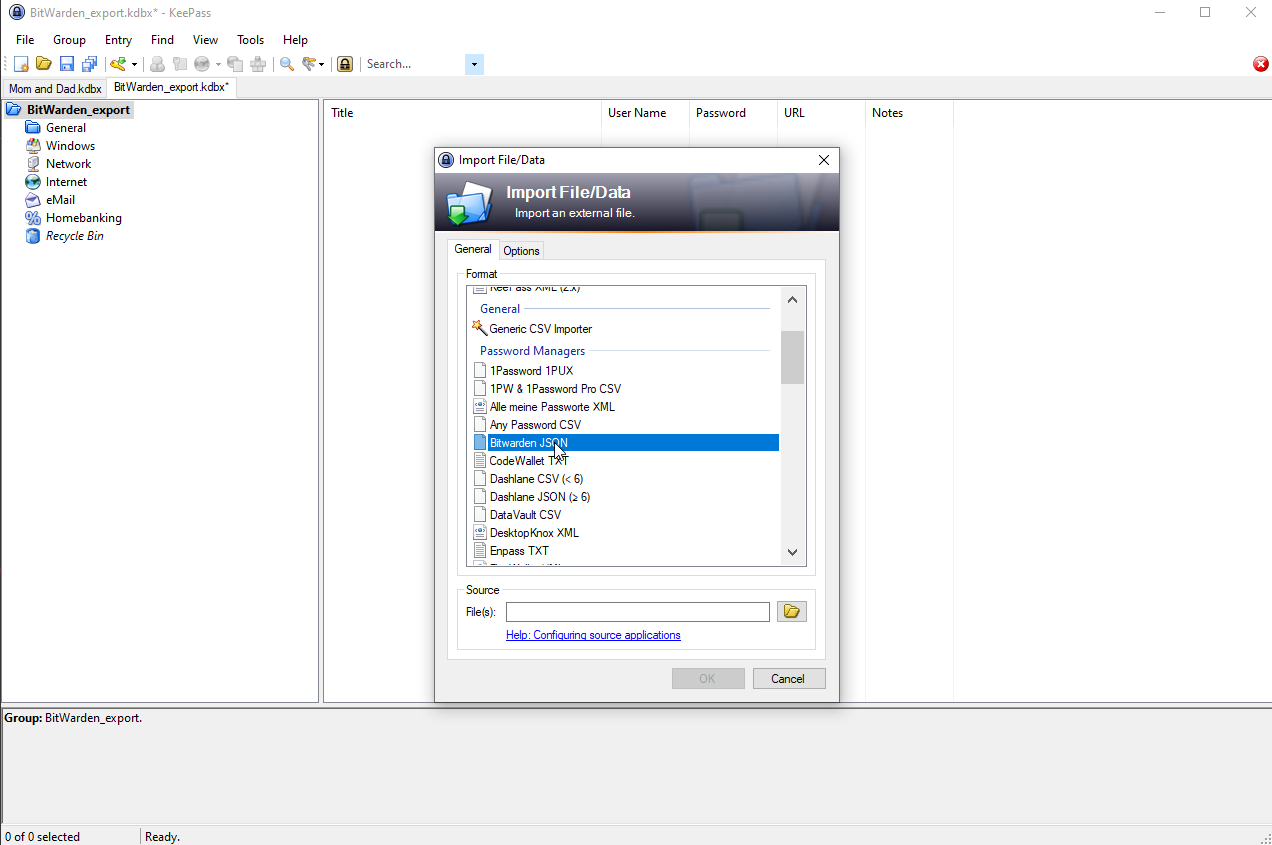
Under FORMAT, click BITWARDEN JSON. Then click the little folder icon across from SOURCE FILE.
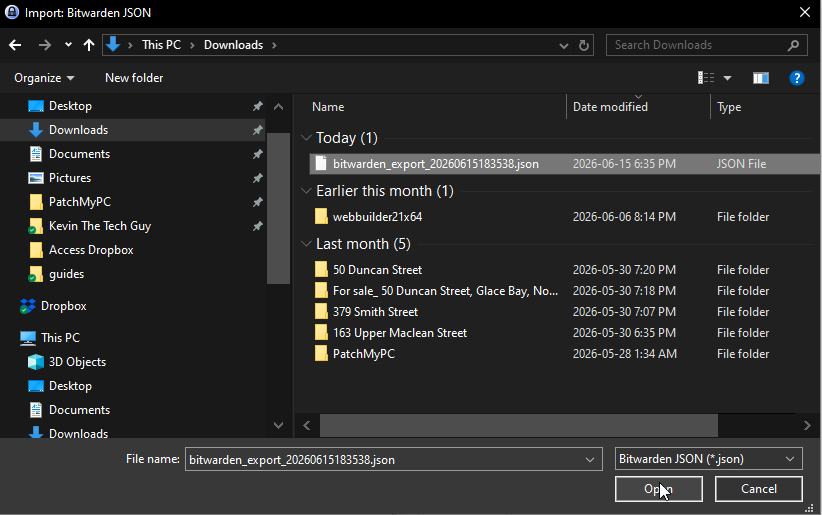
Locate the BitWarden file that you saved a moment ago. Click the file, then click OPEN. Name the database and fill out the other details on the following screen to finish the import.
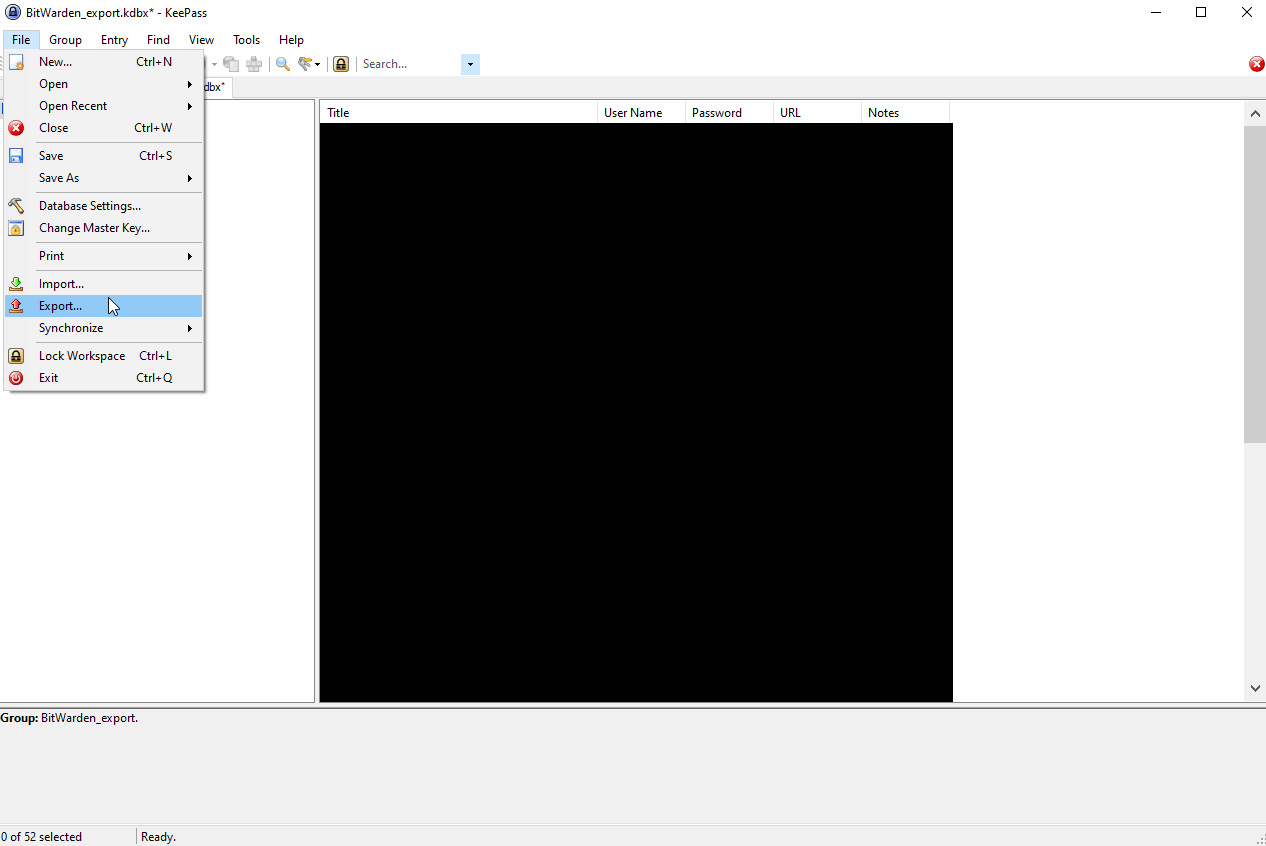
When the BitWarden export is displayed in KeePass, click FILE, then EXPORT.
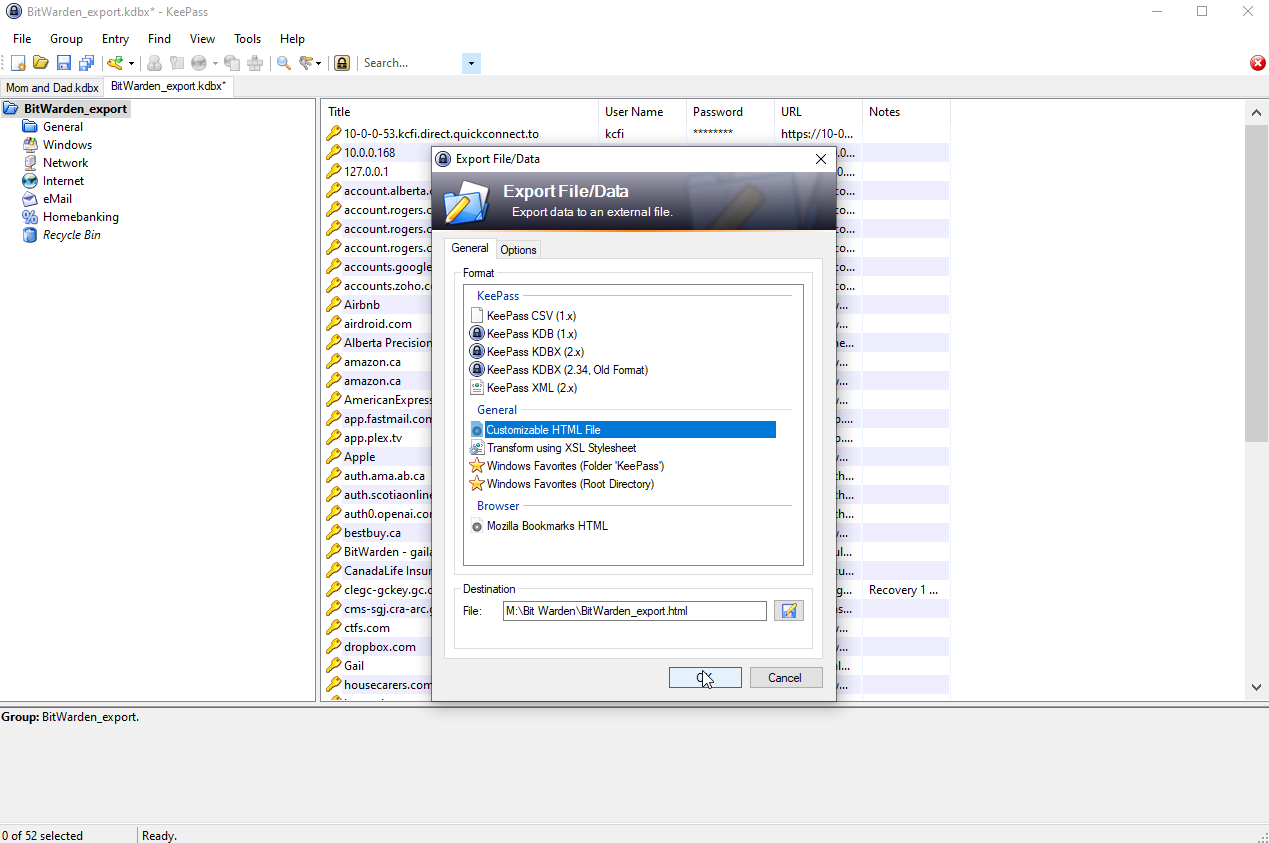
Under FORMAT, click CUSTOMIZABLE HTML FILE. Then click the little floppy disk “save” button to save it somewhere you’ll know where to find it.
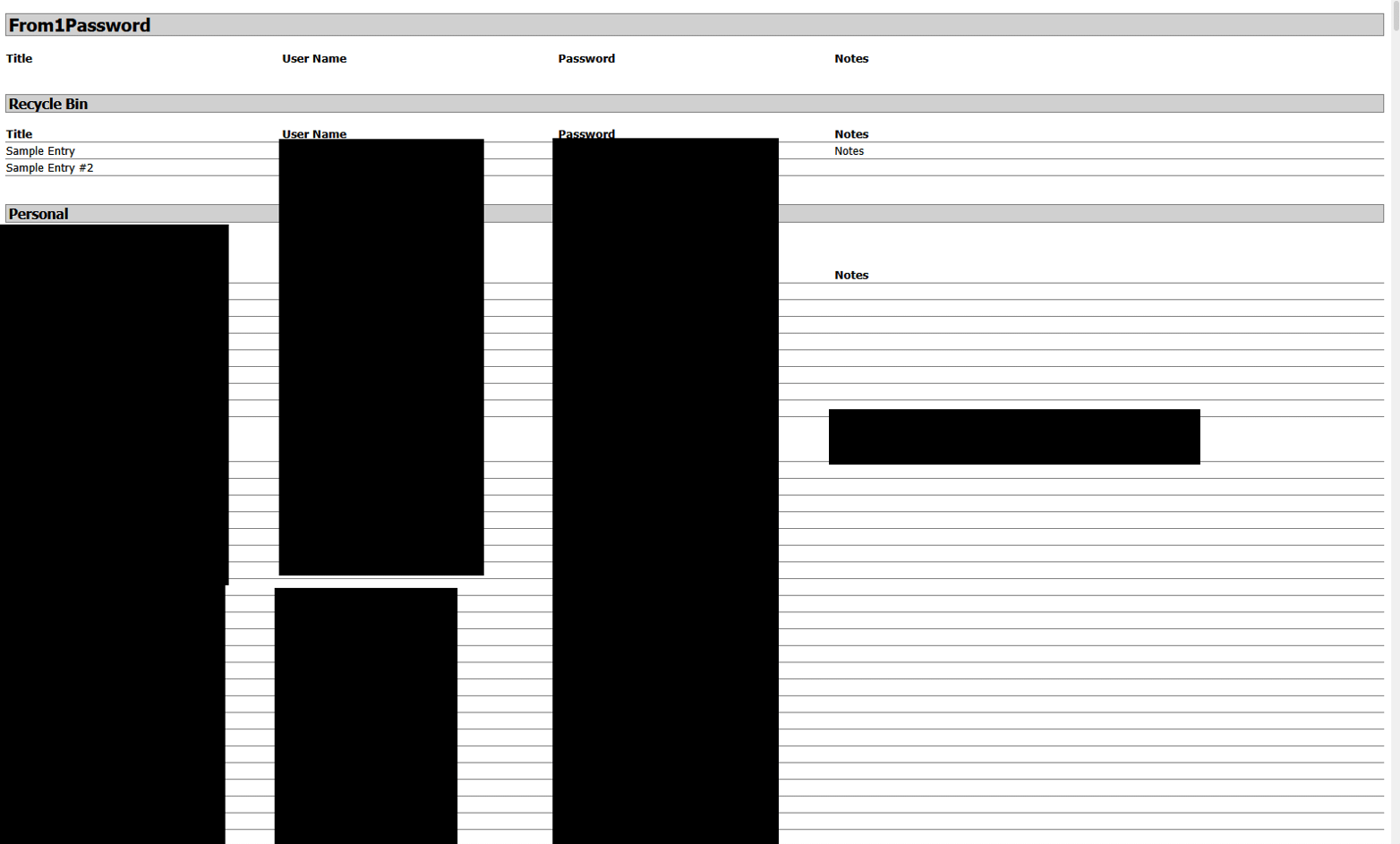
This is roughly what the KeePass HTML export file will look like. Ignore the fact it says “From 1Password” at the top in my screenshot. The rest will look roughly the same. You can now print this HTML file and it will be much more readable than if it was printed via BitWarden itself.
Closing Thoughts
As I mentioned at the beginning of this guide on how to download install and use Bit Warden, I generally recommend keeping your passwords protected inside Bitwarden rather than relying on printed copies. However, there are situations where having a paper backup makes sense, particularly for emergency planning, digital legacy purposes, or simply giving yourself one more recovery option should the unexpected happen.
If you decide to print your passwords, treat that document with the same level of care you would give cash, legal documents, or other sensitive records. Store it in a secure location and carefully consider who should have access to it.
Technology can help us protect our digital lives, but it’s also worth thinking about how trusted family members might access important information if they ever need to. A little planning today can save a great deal of stress and confusion tomorrow.
Thank you for following along with this guide. I hope it has given you another useful tool for managing your digital life and preparing for whatever the future may bring.