


You may not want to use a Microsoft Account, but they make it challenging to install Windows 11 without one. That said, there are many benefits to a Microsoft Account, as noted below.
Here's how to setup a Local Account, based on your computer and NOT in the cloud, during Windows 11 setup. Please note that this process does NOT work during a Windows Reset.
IMPORTANT: You MUST disconnect your computer or laptop from the internet (WiFi or wired) for these steps to work. You can reconnect the internet once you're back in Windows.
What Changes When You Use A Local Account instead of a Microsoft Account? (click to expand)
For the most part, a Local Account in Windows 11 looks and behaves much like a Microsoft account, but there are key differences:
A Local Windows Account Doesn't Require A Password
You are not required to protect a local account with even a simple password, making the system much less secure. This is a particularly bad problem if you give the local account administrative capabilities, giving someone else easy access to anything on that computer.
No Two-Step Authentication
Your Microsoft account can and should be protected with Two-Factor Authentication (2FA). A Local Account is not protected by 2FA, and cannot be. Though if you use Windows Hello (facial recognition or fingerprint) and a secure password, you should be fine.
No Device Encryption (Windows 11 Home only)
When you sign in to Windows 11 Home with a Microsoft account, automatic disk encryption is enabled. This helps protect the documents and other data it contains from being stolen or otherwise accessed by others.
When you sign in with a local account, your computer's storage is not encrypted by this feature, and cannot be because the recovery key for this encryption must be stored online in a Microsoft account.
That said, if you are using Windows 11 Pro with a local account, you can enable BitLocker drive encryption manually after the initial sign in.
No Account Recovery
Your Microsoft account is protected by Microsoft, so you can recover your account from your online account if you forget your password or the account is somehow compromised. There are no such protections with a local account.
Can't Synchronize Account Settings
When you sign in with a Microsoft account, Windows 11 uses a feature called Windows Backup to sync a limited set of settings to your cloud account. so it can be restored when you sign in with that same account using another computer. This functionality is not available with a local account.
No Automatic Sign In To Microsoft Apps
When you sign in to Windows 11 with a Microsoft account, you are automatically signed in to Microsoft Store apps. You can’t use some apps and experiences with a local account.
The Microsoft Store app runs without a Microsoft account, and it even lets you download and update free apps without signing in.
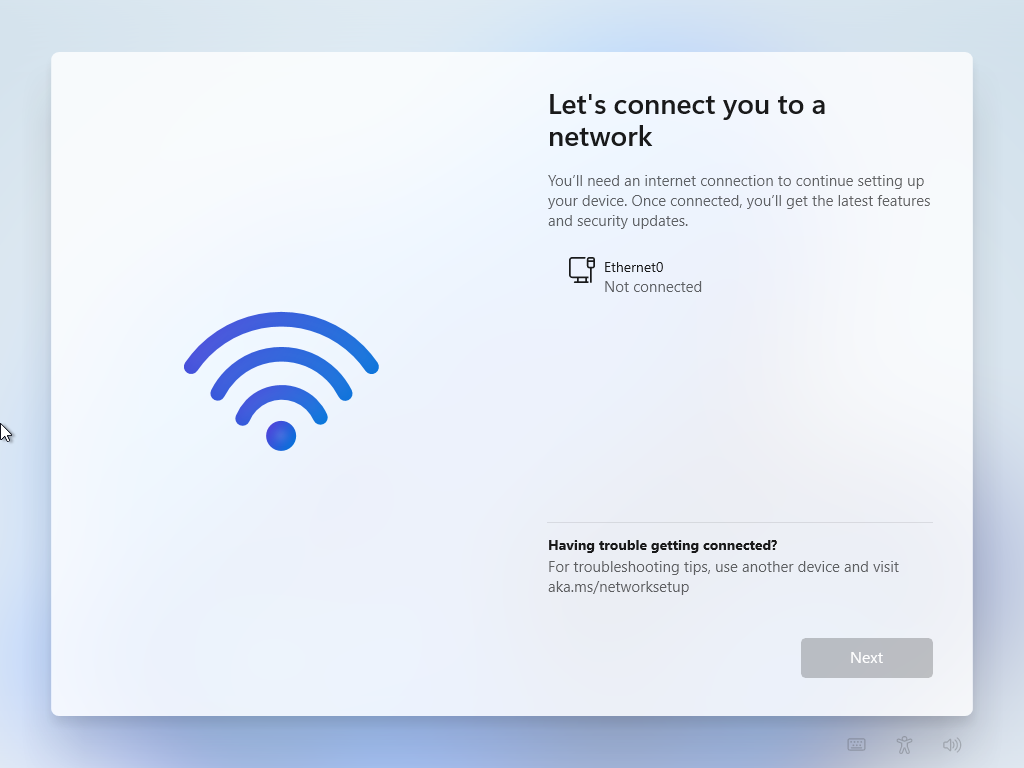
With the internet disconnected, Windows 11 is unable to connect to Microsoft in order to force you to setup or use a Microsoft Account in order to finish installing Windows 11.
You'll see this screen asking you to connect to the internet. Ignore that and press SHIFT+F10 on your keyboard to open a Command Prompt window. Don't worry, this will be easy.
With the Command Prompt window open, simply type "OOBE\BYPASSNRO" without quotes and UPPERCASE, then hit "enter" on your keyboard. Windows 11 setup will automatically restart your computer, and you'll need to walk through the steps again back to the screen above.
Alternatively, at the prompt, type:
start ms-cxh:localonly
and hit enter.
If you encounter some kind of roadblock where this doesn’t work, go ahead and create a Microsoft account, get into Windows, then easily switch over to a Local Account within Windows, and never use your Microsoft account.
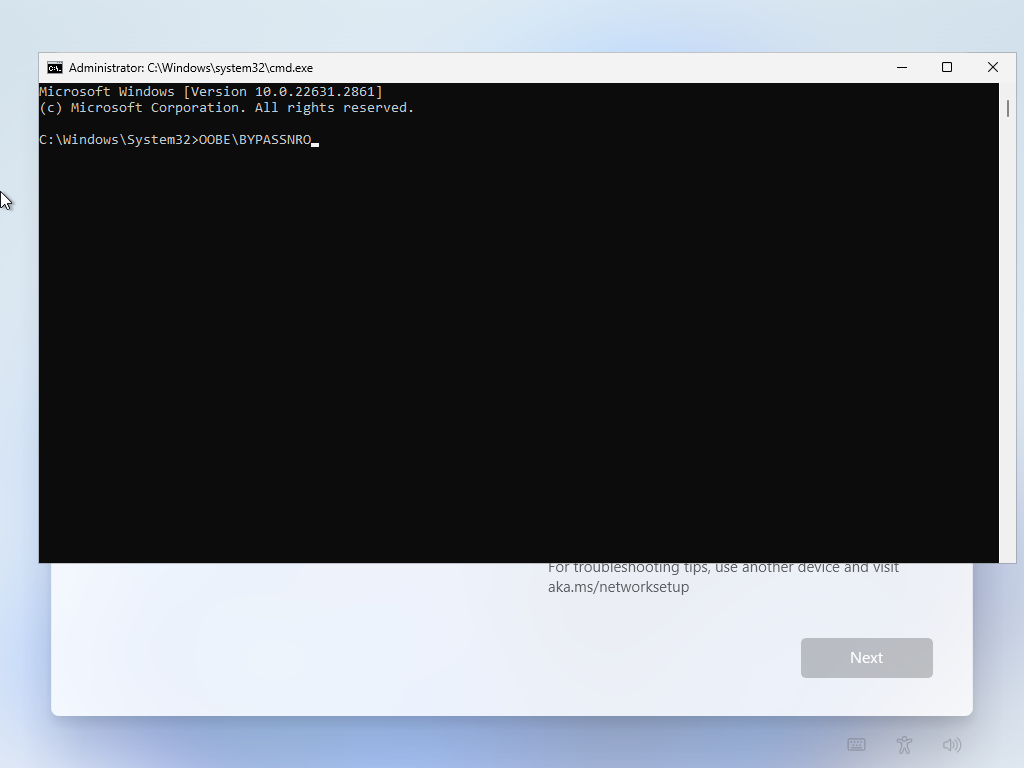
Please note that this process and these commands are completely legitimate, and created by Microsoft for this purpose for various reasons. They REALLY want you to use a Microsoft Account, BUT if you're savvy enough to follow these steps, they'll allow you to create a Local Account.
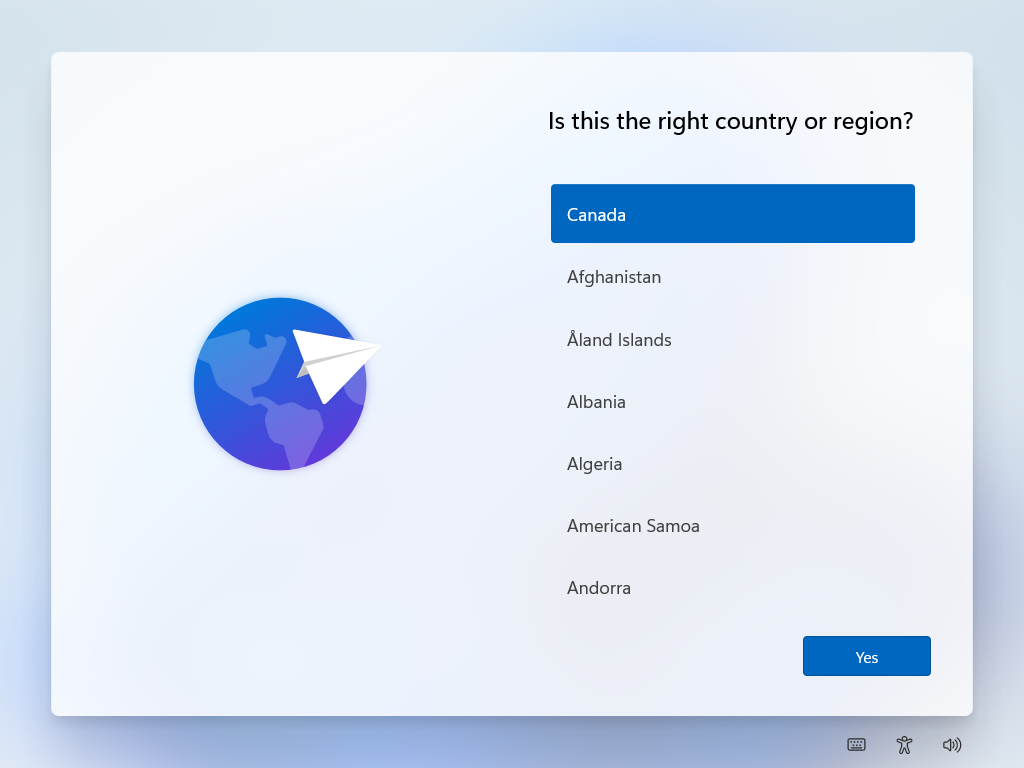
On the "Is this the right country or region", choose your country.

On the "Is this the right keyboard layout or input method?" screen, click "yes".
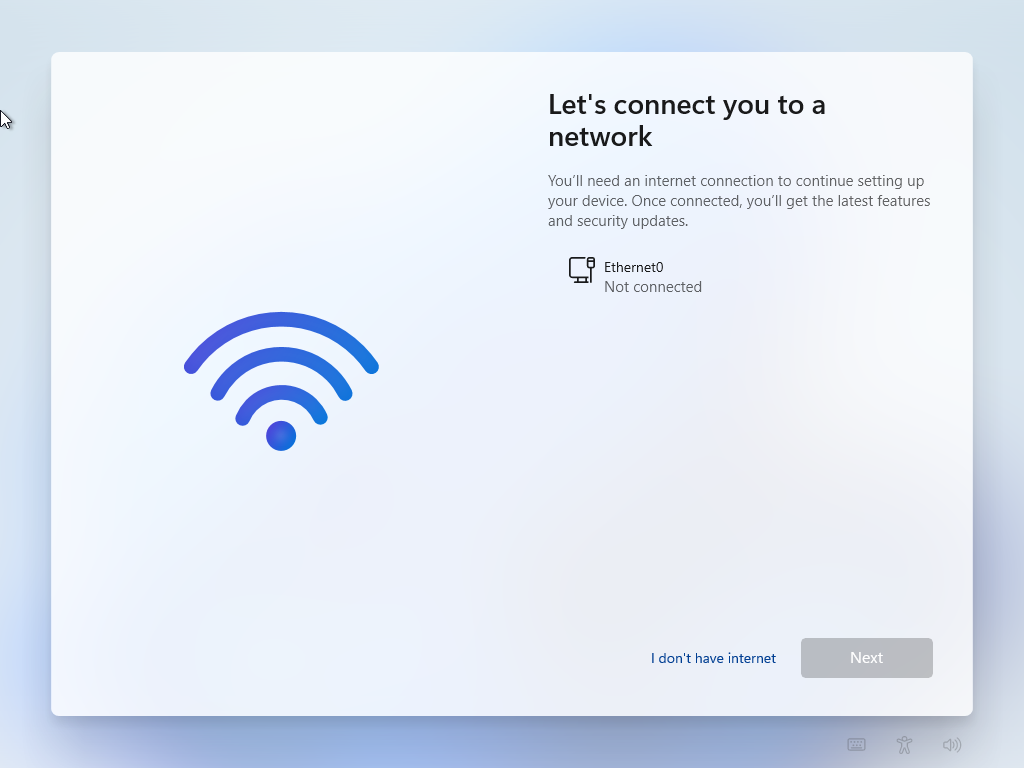
Now we're back on the screen asking you to connect your computer to the internet. You will now notice a "I don't have internet" link at the bottom. Please click that.
Now you will see a link saying "Continue with limited setup". Please click that.
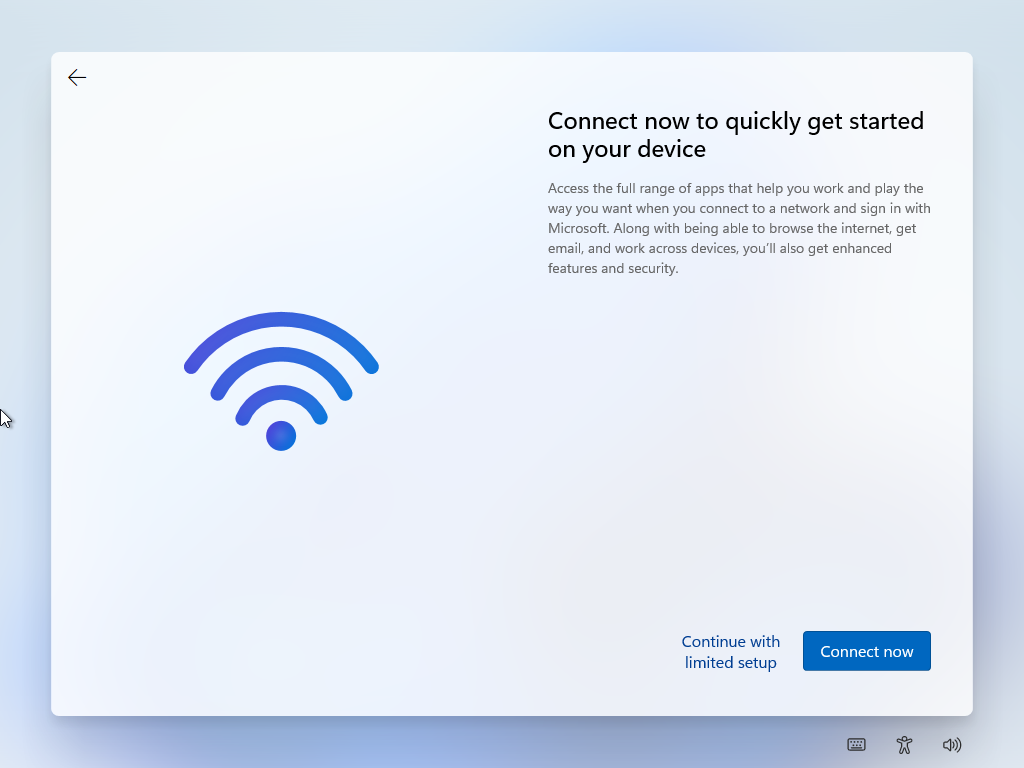
This is just Microsoft trying to scare users into connecting to the internet and using a Microsoft Account.
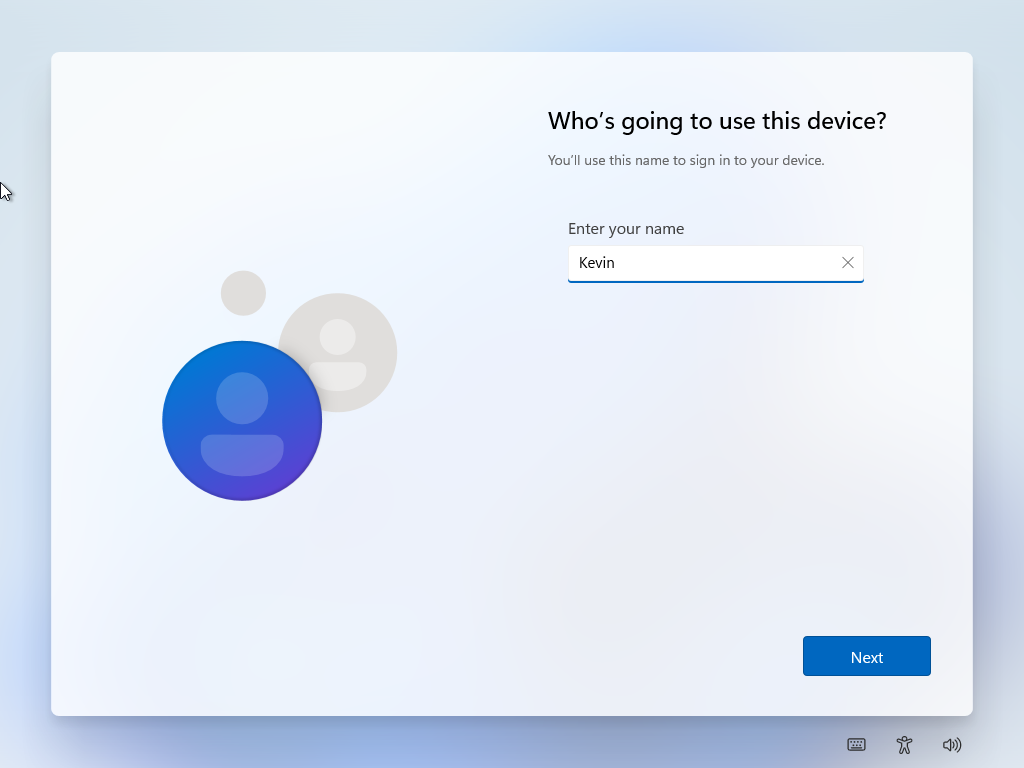
Now setup will finally let you setup a Local Account during Windows 11 setup. You will see a few more screen after this regarding setup, then you'll be in Windows 11. At that point, feel free to reconnect to the internet.
If you find value in this How To Guide, please consider supporting my work.