

Getting To Know Your Way Around
So, let's get started with some basics on using Mastodon, though it will vary slightly depending on the instance you join.
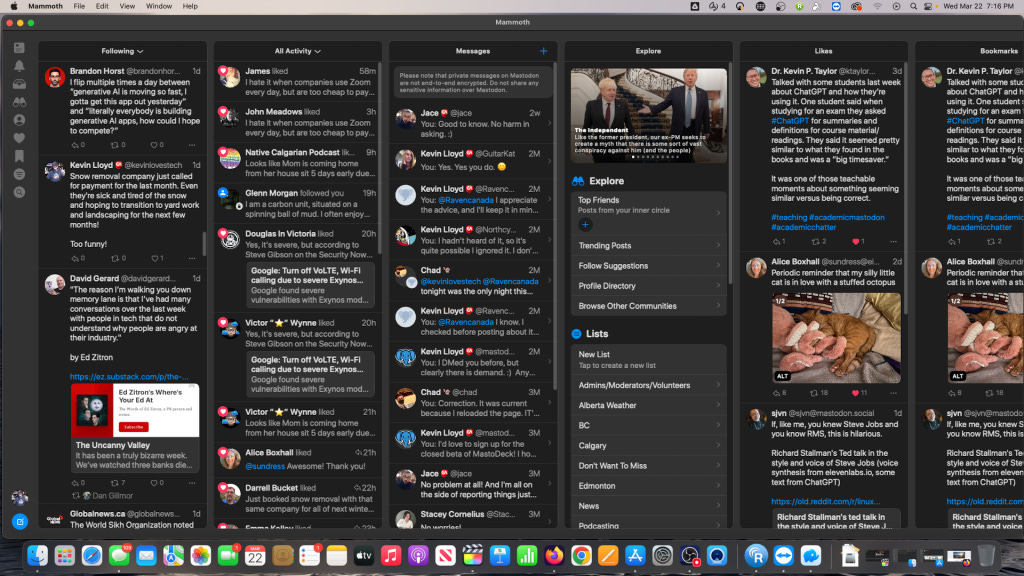
If you're looking for a Twitter-esque experience, that's roughly what you'll see after signing up, and you might be happy with that. If you're somewhat of a “Power User” of Twitter, you'll likely appreciate “Advanced Mode.” This is on the “General” tab in Settings (Preferences). Check that box, and it'll be more of a Tweetdeck experience.
So, let's get started with some basics on using Mastodon, though it will vary slightly depending on the instance you join.
Fill Out Your Profile
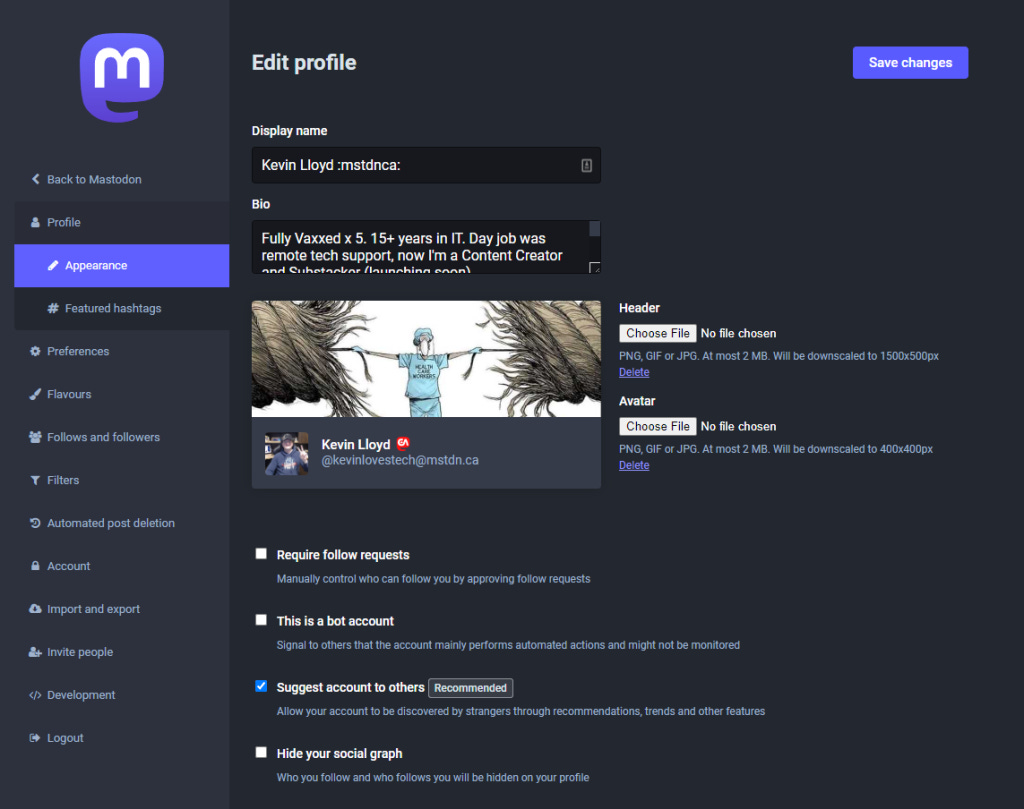
Before you start posting, fill out your profile (bio) and add a profile and photo; a header photo is essential. This is a sign of respect to other users that you're genuinely interested in the instance and Mastodon. It indicates that you care enough to share a bit about yourself, much like you did on Twitter.
Click “Edit Profile” or the “Profile” tab in Settings or Preferences to do that. No matter what you change in there, don't forget to click “Save Changes” in the top right, or all changes will be lost.
Go ahead and make a first post, but wait to dive in.
User Preferences
You can click the “gears” icon at the top of the first column in “Advanced Mode.” I fully encourage you to spend some time here and check out all of the Settings Mastodon offers.
Columns and Settings
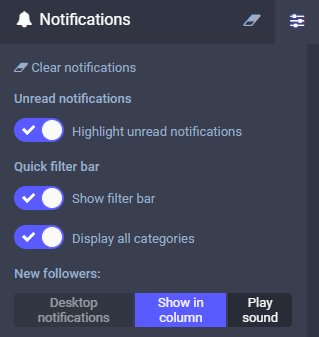
Each column has a “Show Settings” button in the top right. Click that and make any changes you wish to. The most critical settings often change your “Notifications” column. Turn off any sounds you don't want to be bothered with.
Each column has a “Show Settings” button in the top right. Click that and make any changes you wish to. The most critical settings often change your “Notifications” column. Turn off any sounds you don't want to be bothered with.
Direct Messages, Bookmarks, Favourites, etc.
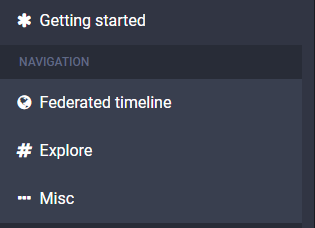
You can add more columns on the “Getting Started” column at the far right (you may need to scroll over there). For example, Direct Messages (DMs), Local timelines, Federated timelines, Bookmarks, Favourites, and more. Click each one to view them as a column, then click the “Show Settings” button for that column. Finally, click “Pin” to save that column where it is. The “Getting Started” column will again appear on the right next to it.
It's worth mentioning here that Direct Messages don't work the same way here that they do on Twitter. They're NOT private and can be viewed publicly, but only you and the other person(s) can interact in that conversation. This is a user pain point, so developers are working on solutions.
Lists
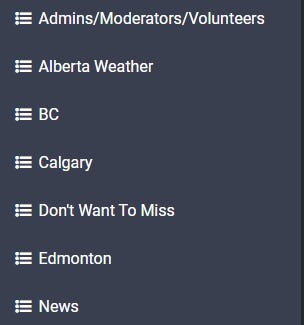
You can create lists like on Twitter, but they're only visible to you. Using the instructions above, you can create a column for each.
Boosts vs. ReTweets
Boosts are Mastodon's ReTweet. So far, Quote Tweets aren't an official feature yet, but it's a top requested feature, and some mobile apps offer a version. Officially, Mastodon developers “want to get it right” regarding opt-in ability and other things. You can favorite posts by clicking the “star,” but only the post’s author will see it.
Bookmarks
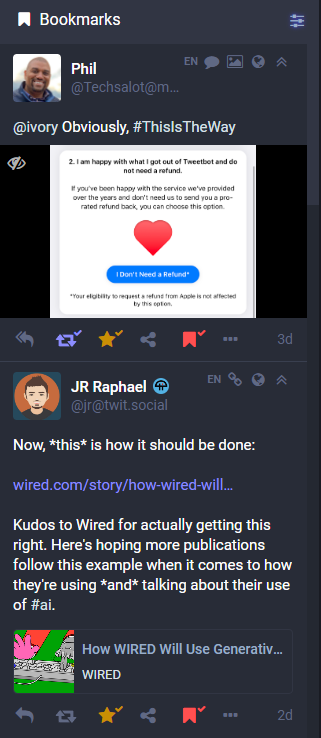
Bookmarks are only for your benefit. Kind of a “view later” feature you change instances, and they are transferred over with other info from your accounts.
Favorites
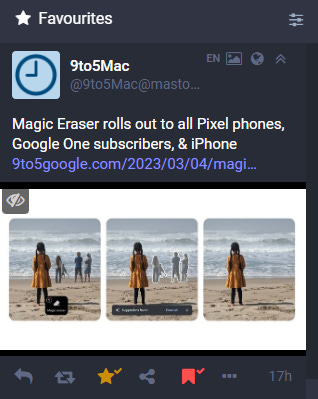
When you “favorite” something, you're telling people on Mastodon and the account's author that you appreciate that post, but since there's no algorithm, it doesn't increase the chances that the post will be seen more. You also can't move your Favorites to a new account on another instance.
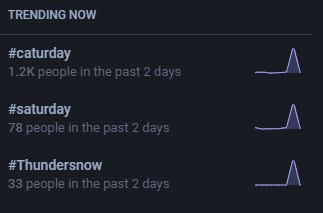
What's Trending
That said, on the “Getting Started” column, click on “#Explore.” Here you can view popular posts, hashtags, news, and posts Mastodon thinks you'll like under “for you.”
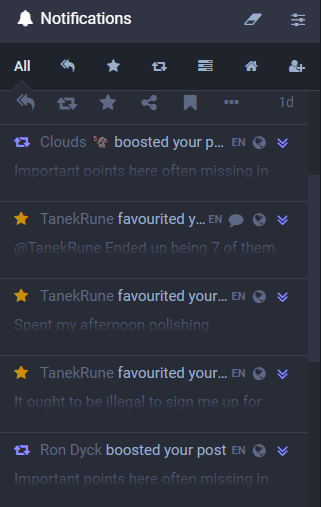
Notifications
In this column, you can see all Notifications related to you. Posts you've made that people have boosted or favorited, mentions, new Followers, results of polls you've made, updates from people you follow, or the default “All” tab show what their names imply.
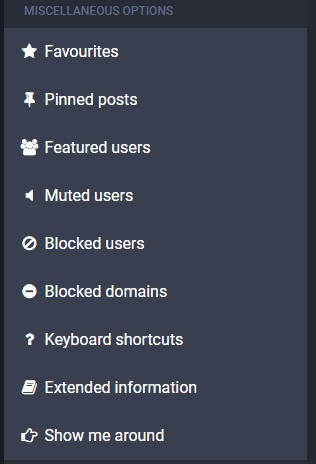
Also, on “Getting Started”
You have various options in this column, including “Miscellaneous,” where you can view Muted Users, Blocked Users, and more.
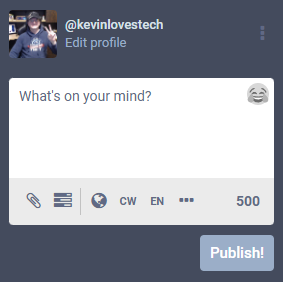
Writing a Post
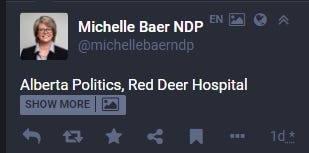
When you want to write posts, you can add attachments like GIFS, images, and videos by using the paperclip icon. These are sometimes jokingly referred to as “toots,” though few use that term anymore. You can also create polls, control who can see the post, add a CW (Content Warning), change the language of your post, and limit your posts to only being visible in your particular instances and other options.
Content Warnings (CW)
Content Warnings are NOT just for controversial or triggering topics, though that is their everyday use. When you add what a headline is, other users can click “Show More” if they wish to read your post. This can apply to any topic and is a courtesy to users who may not be interested in what you have to say in that specific post.
This is very much at your discretion, but it's a kind thing to do.
Mobile Apps
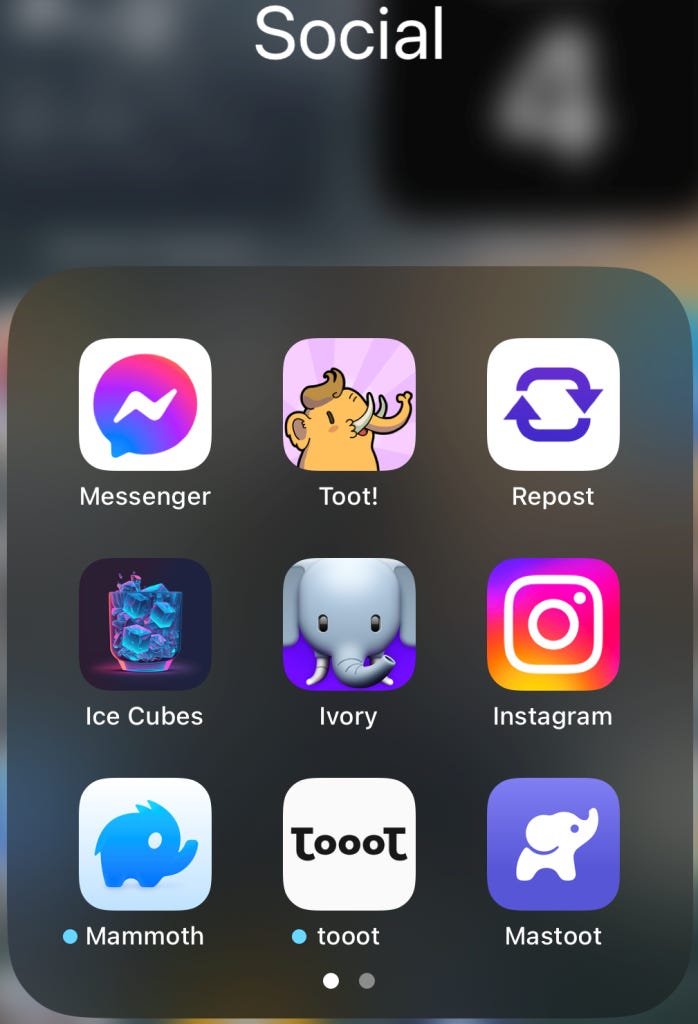
Mastodon itself has had iPhone and Android apps for a long time. They're good but need some of the desired features of paid apps. Developers have scrambled to create or update their Mastodon apps on iPhone and Android to serve the growing audiences.
On iPhone. I prefer you paid apps, including Ice Cubes, Mammoth, Toot!, and Ivory. Ivory was also made by the developers of Tweetbot (for Twitter) at Icon Factory, Tweetbot, but has been abandoned due to Twitter shutting down third-party access.
I like Tusky, Tooot (not to be confused with Toot! on iPhone), and Megalodon on Android. Again, the Mastodon app itself is also available but isn't nearly as fully featured.
Mammoth is an excellent option on the Mac, and so is Ice Cubes, though neither is explicitly designed for the Mac, instead for iPhone and iPad. They'll still work, however.
Conclusion
So now that you know how to use Mastodon. It’s up to you whether you want to switch to it entirely or hold out hope for the future of that platform. I've chosen to be inactive there and use it strictly as a news feed now, as I hope things will change eventually when a certain billionaire is no longer in charge.
Watching my Twitter feed keeps me informed, though I rarely tweet anymore. But as more people join and use Mastodon, I'm spending more time there, posting more, and getting more interaction than I have in recent years on Twitter.
Most users are sticking it out while getting to know and growing with their Mastodon instance. Change is hard, especially given Twitter's supposed reach and arguable simplicity.
I see Mastodon as one future of Social Media where users are in control, not corporations. A place where the goal is a community, not profit or shareholders. An oasis where the focus is on healthy conversations rather than engagement that suits an algorithm and, thus, revenues.
Jack Dorsey, one of Twitter's founders, touted the benefits of open Social Media networks. Other founders have mostly been silent as they enjoy their windfall at the expense of the users who made Twitter what it is and as Twitter falls to the whims of you-know-who. Their investors and shareholders spoke much louder than the users, after all.
It is vital to embrace newer Social Media that aligns with our needs. We have the choice now and hopefully have learned that these online communities should not be monetized or controlled by any single company. We can choose not to have our words sold like products and embrace the learning curves and growing pains.
Thank you for reading this post. I encourage you to become a monthly subscriber for $5 to support my efforts here. If you have any comments or questions, please let me know. Check out KevinTheTechGuy.ca for more!