

Recently, I decided to recycle an older Windows 11 computer, along with my other computers ahead of the MAID procedure I have talked about, originally scheduled for May 27th - now June 28th - due to my long-term chronic illness. It’s the reason I shut down my home business.
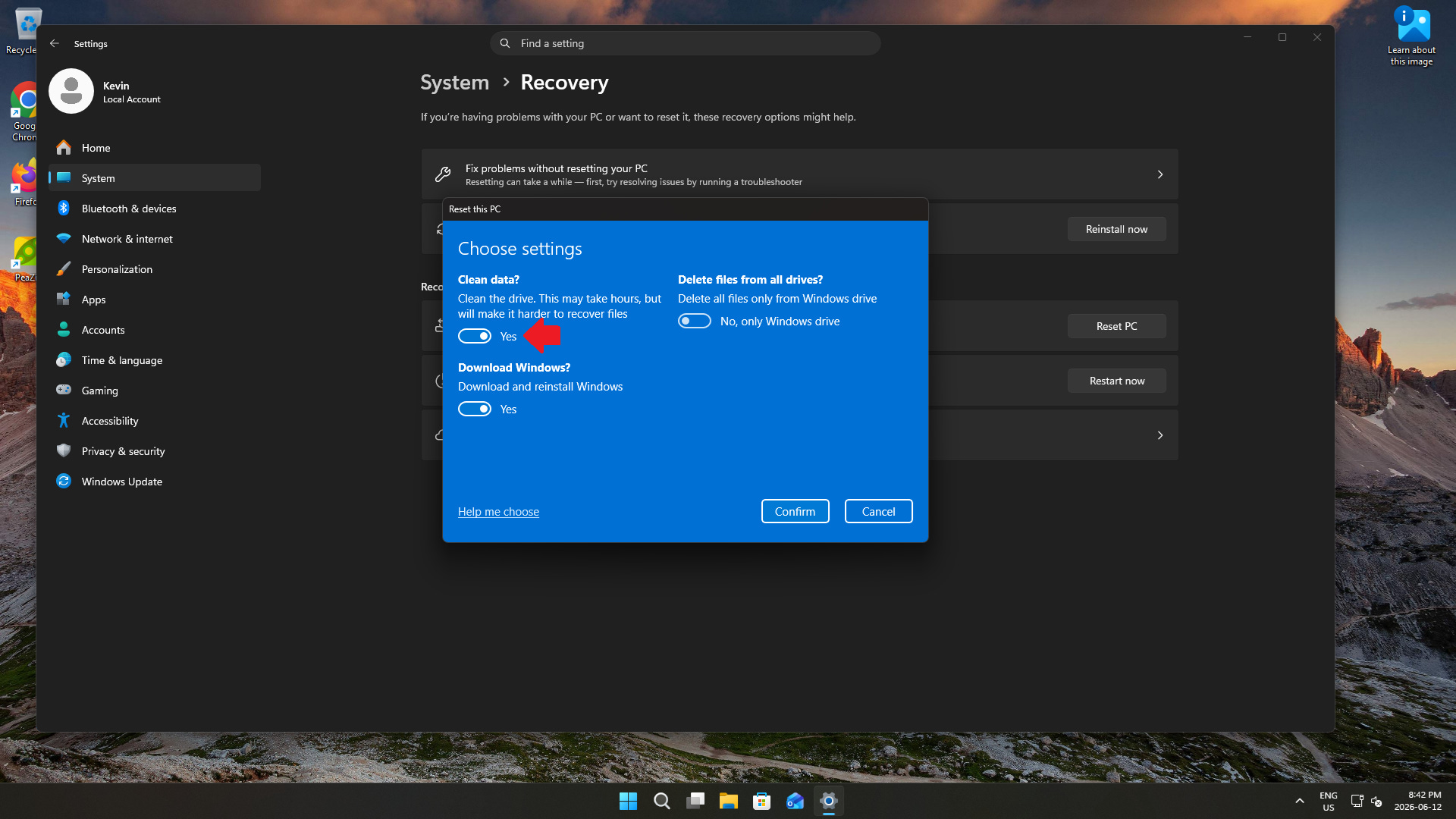
Before recycling those computers, I wanted to make absolutely sure my personal data was gone, so I used Windows’ built-in reset feature and selected the option to fully clean the drive - the “clean data” option.
The wording makes it sound like exactly what I needed. Windows would securely erase my data, effectively a full format, and leave the machine ready for its potential next owner. The process took a while, which was expected, and I even watched Windows go through the reinstall process afterward. Everything appeared to have worked normally.
Then my plans got delayed by a month.
Instead of immediately recycling the computer, I needed the computer for a few more weeks.
On the Windows 11 computer, I simply expected to power it on and verify that everything was ready before sending it on its way.
The computer wouldn’t boot into Windows, and I still don’t know why, because it had clearly done so after the clean install.
At first, I wasn’t especially concerned. Reinstalling Windows is a fairly routine task, and I assumed that if something had gone wrong during the reset, I could simply create a Windows installation USB and start over. What I expected to be a quick recovery process ended up becoming several hours of troubleshooting, before I stumbled upon the solution.
The Missing Drivers
In my planned final days, I used my MacBook Air as my primary computer.
I downloaded the Windows 11 ISO and used Balena Etcher to create a bootable USB installer, as recommended by others. There was no reason to suspect it would be a problem. The USB drive booted successfully, Windows Setup loaded, and for a moment everything seemed to be going according to plan.
Then Windows Setup displayed a vague message indicating that a required media driver was missing, without further details.
A missing driver suggests that Windows cannot communicate with some critical component.
My first thought was that perhaps the SSD wasn’t being detected properly. Maybe there was a storage controller issue. Maybe the motherboard required some special driver before Windows could recognize the drive.
I haven’t encountered anything like this since my Windows 98 or XP days, when I had a CD with drivers from the manufacturer on hand. I certainly don’t have that these days, as essential drivers are now bundled with Windows, and others are easily downloadable through Windows Update.
Whatever the cause, the error message certainly didn’t suggest that the installation media itself might be responsible.
Creating a Windows USB Stick Without Windows
As the troubleshooting continued, another problem became obvious. Many of the recommended recovery solutions assume that you have access to another Windows computer. I had wiped all of my computers using the “clean data” option in Windows. Only my MacBook Air was usable, as it turns out.
Again and again, I encountered suggestions to use Microsoft’s Media Creation Tool or to create installation media with Rufus. I didn’t have a usable Windows computer, and my Windows install USB sticks weren’t working, hence the “missing driver” message.
I was trying to recover a Windows machine while sitting at a Mac.
I explored several alternatives. I tried to get Windows up and running in a Virtual Machine (VM) using free versions of VMware Fusion and VirtualBox. I looked into Ventoy. I considered Linux-based solutions. Every option seemed to create new obstacles, rather than solving the existing problem.
What started as a simple effort to prepare a computer for recycling had somehow become a multi-platform recovery exercise, and increasingly desperate troubleshooting.
The Tool I’d Never Heard Of
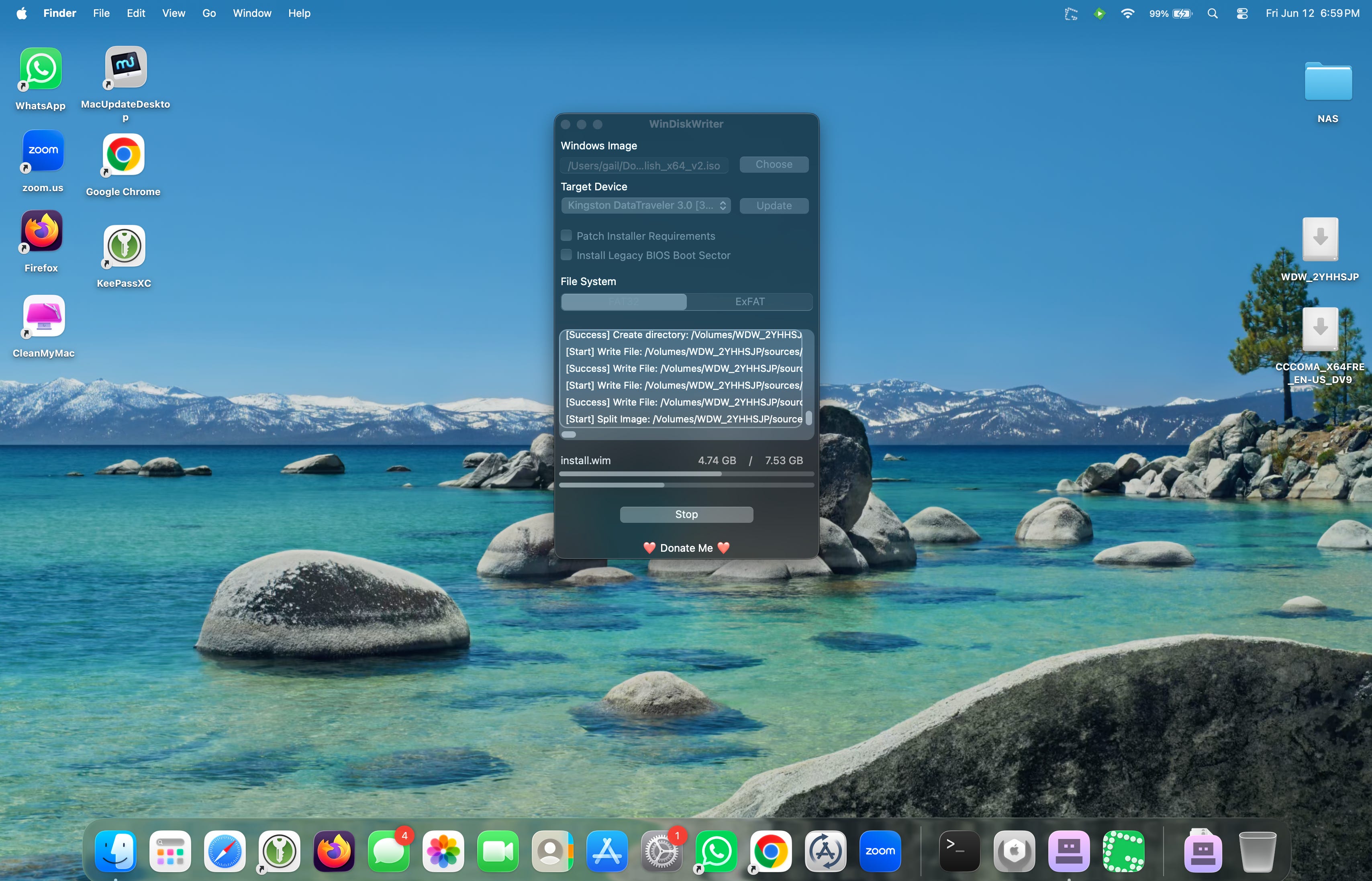
Eventually, after exhausting a long list of possibilities suggested in blog posts, forums, and ChatGPT, I stumbled across a utility called WinDiskWriter. Until that moment, I had never heard of it.
I was willing to try almost anything, so I downloaded the software, pointed it at the Windows 11 ISO, and started creating another installer USB. The process took dramatically longer than Balena Etcher or the Media Creation Tool in Windows ever had.
When I booted the computer from the USB created by WinDiskWriter, the problem disappeared immediately. Windows Setup loaded normally, and installed normally.
Why Did This Happen?
Per ChatGPT, Windows installation media is surprisingly picky. It’s not enough for the USB drive to simply boot. Windows Setup expects the installer files, partitions, boot files, and whatever else it needs to be organized in a very specific way.
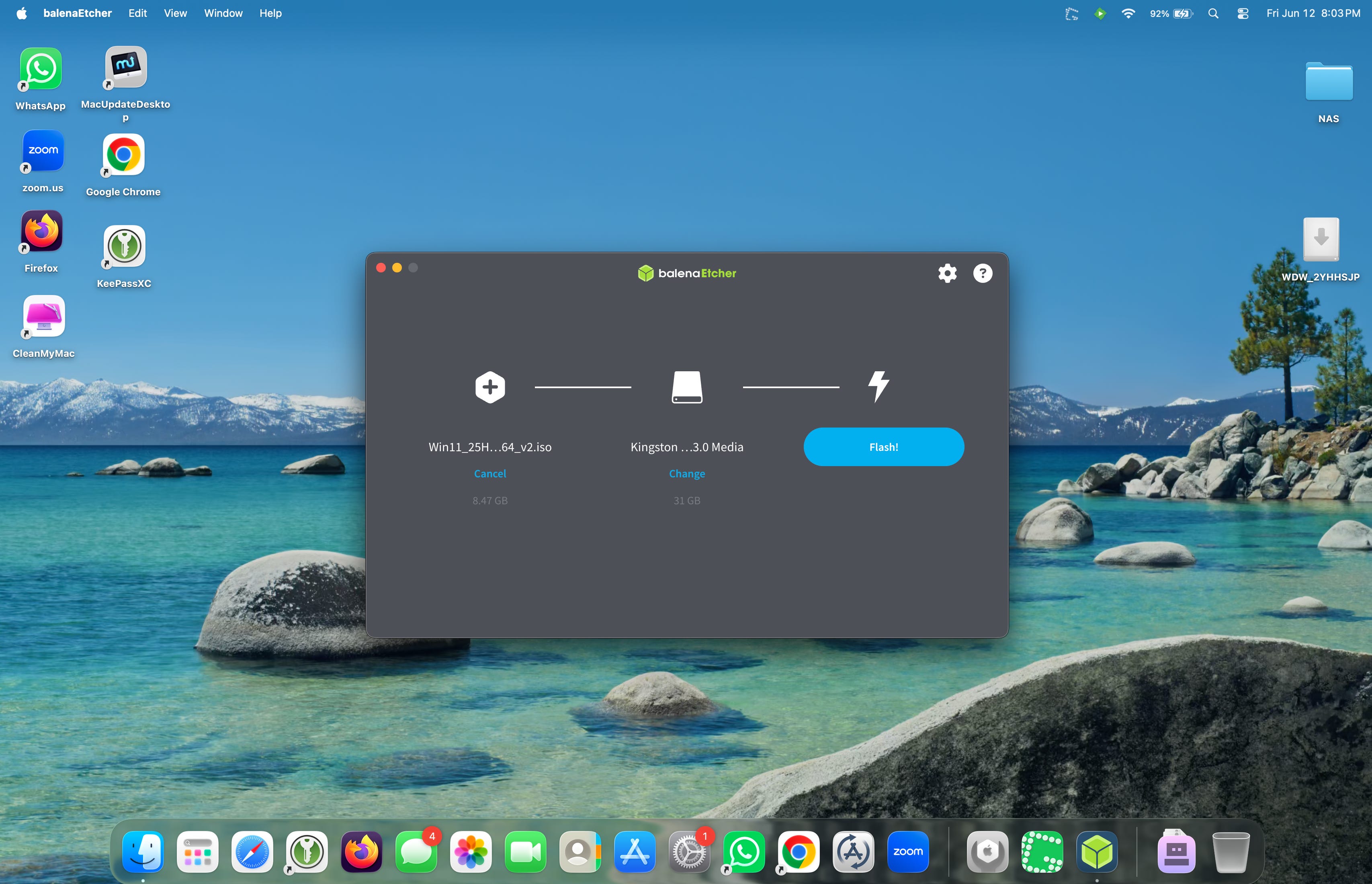
Balena Etcher is a general-purpose imaging tool. It excels at writing Linux images and other disk images, but Windows installers have their own quirks. In my case, Etcher created a USB that was good enough to start Windows Setup, but apparently not good enough for Setup to complete its work under the circumstances after a “clean data” install.
WinDiskWriter was built specifically to create Windows installation media from macOS. Rather than treating the Windows ISO like a generic disk image, it appears to build the USB in a way that more closely matches what Windows Setup expects. That’s probably why it took much longer to create the USB than Balena Etcher did.
Not all Windows installer USB drives are created the same way. Two different tools can start with the exact same Windows files and still organize them differently on the USB drive, and do different things with them.
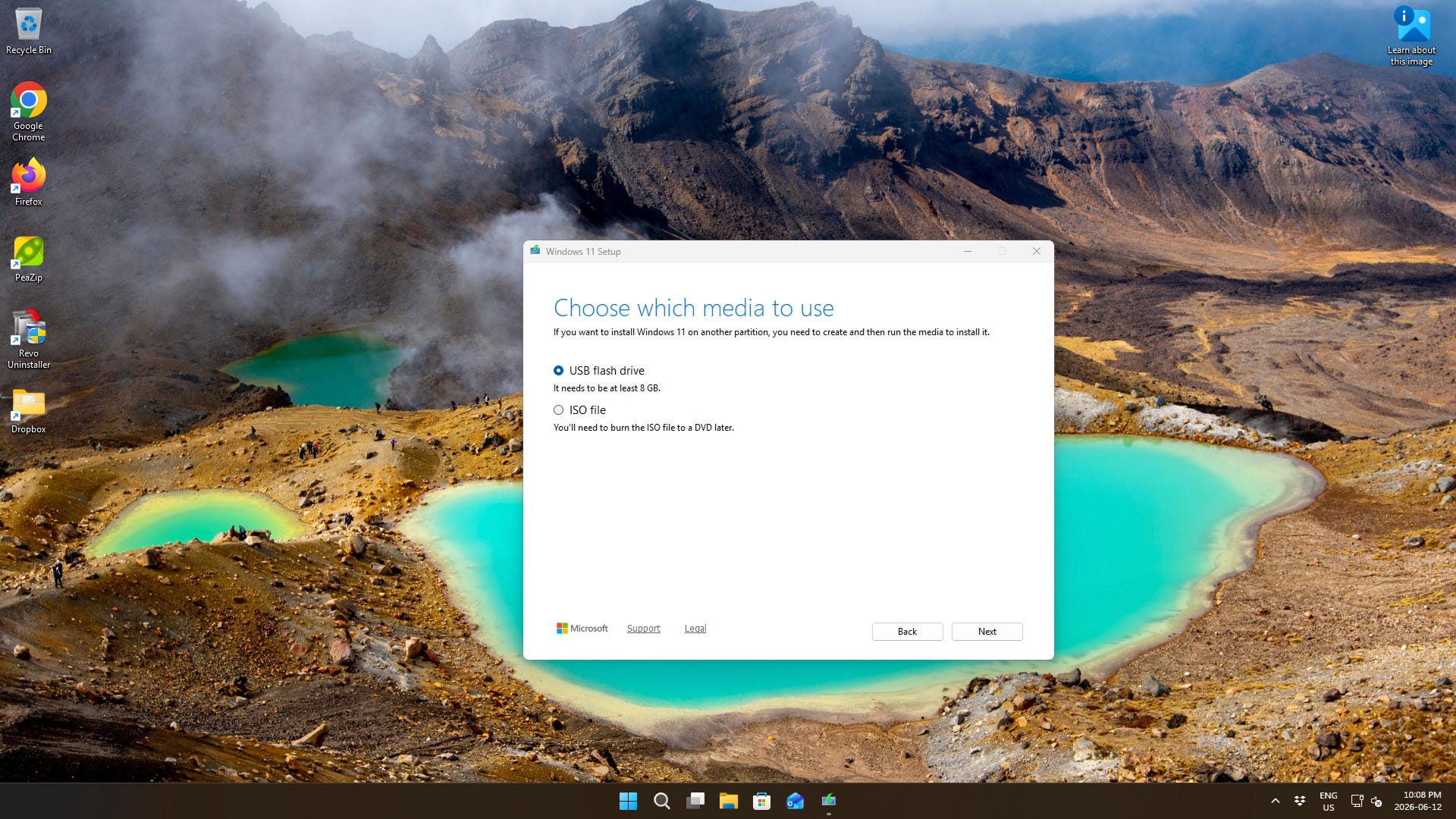
The Media Creation Tool creates installation media that works on the vast majority of systems, but it still has to make choices about how files are stored, how partitions are laid out, and how the installer accesses those files.
Something about the “clean data” reset option in Windows 10/11 makes this tool useless.
WinDiskWriter appears to create the USB differently.
For whatever reason, my computers didn’t like the installer media created by Balena Etcher or the Media Creation Tool. However, it immediately accepted the installer created by WinDiskWriter.
That tells me the issue was never the hardware. It was the way the installation media had been prepared.
WinDiskWriter succeeded because it created a version of the installer that my computer and Windows Setup were both able to read correctly from beginning to end, and didn’t need evidence of a previous Windows install on the drive.
The result was that Windows Setup could finally find and access all of the files it needed.
WinDiskWriter fixed the problem. It created installation media that Windows Setup could fully understand and use.
What makes this particularly frustrating is that Windows never pointed me toward the actual cause. Instead of suggesting that the installation media might be corrupt or incompatible, it presented an error message that sounded like a hardware or driver failure.
Why This Bothers Me
What bothers me most about this is how dependent that solution was on discovering a relatively obscure utility that I had never heard of before.
If I had not found WinDiskWriter, the computer would have remained unusable. The hardware was healthy the entire time, but that didn’t matter while the machine was unable to boot and unable to reinstall Windows.
My goal was simple. I wanted to securely erase the contents of my computers before recycling them. I was performing a routine task using a built-in Windows feature designed for exactly that purpose.
Yet that routine task left me with computers that could not be used until I discovered a third-party utility that was barely mentioned anywhere.
Closing Thoughts
In the end, the computers are working again for my last few weeks, and will be recycled as originally intended. The experience did leave me with one lasting impression, however. When a built-in operating system feature can leave a user dependent on an obscure third-party tool to recover a perfectly functional machine, something about that is very broken.
My goal was to fully erase the drive, not to make the computer unusable. That’s exactly what happened, and the only reason it didn’t stay that way is because I happened to find the right tool.
That shouldn’t be a requirement for successfully recycling a computer.