


For now, we’ve reached the final part of my Windows 11 setup guide. In this post, I’m showing you how to disable ads in File Explorer and why it’s worth turning on System Restore, even if you never need it. These are small steps that make a big difference in keeping your computer clean and recoverable.
This is Part 5 of my blog post series for paid subscribers on the steps I recommend when setting up Windows 11. Thank you for your support!
Blog Posts in This Series:
Disable File Explorer Ads
You know you’ve seen them. If not, you might in the future. Click on “File Explorer” next to the Start Menu and click the three dots next to “view” near the top of the window. Then click “Options”, and under “Advanced Settings”, as you can see above, uncheck “Show sync provider notifications”.
Enable System Restore

You can use System Restore to revert to a time in your computer’s history when things worked, such as before a change was made or a program was installed.
It creates a current image or system snapshot. Many of these can be stored, but that can also take up space over time. It’s important to enable this in the event that something does go wrong. It will be a last resort before resetting Windows and potentially starting from scratch.
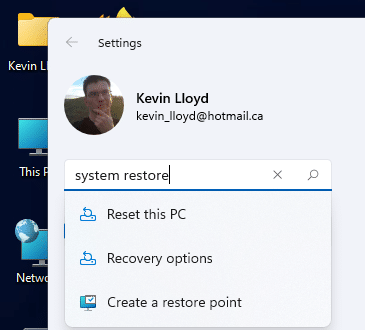
Open the Start Menu, click “Settings”, then search for “System Restore” under your profile and email address in the top left corner of the Settings window.
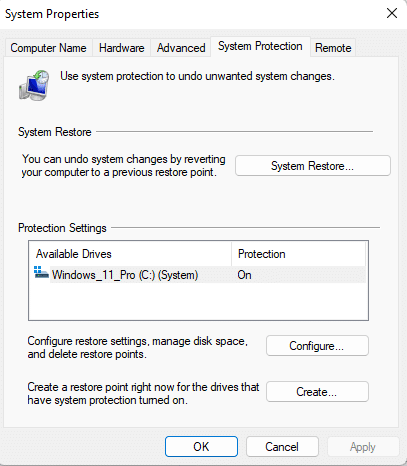
Click on “Create a Restore Point”. Under “Protection Settings”, select your hard drive, likely “C:”, and click the “Configure” button.
Final Thoughts
For now, this part of the Windows 11 setup series is wrapped up. I’ll continue adding new posts if Microsoft changes things or if I find more tools that are worth recommending.
You’ve taken control of the clutter, turned off the distractions, and set up a recovery plan in case something goes sideways. These small changes add up to a smoother, more reliable experience whenever you sit at your computer. If you've followed along with each step, your system is now in a much better place and your experiences using it will be much more pleasant.
On that note, please check out my blog post series regarding what I consider to be a proper System Cleanup. That will improve things on your computer as well.
Thank you so much for reading this blog post and for being a paid subscriber! Your support makes my work possible.