

This post picks up right where we left off in Part 2. I’m going to show you how to cut down on those constant pop-up notifications, choose a web browser that fits your needs, and keep your programs updated without a bunch of manual steps. These are small but important parts of setting up a system that runs smoothly and doesn’t get in your way.
This is Part 3 of my How To blog post series for paid subscribers on the steps I recommend when setting up Windows 11. Thank you for supporting my work!
Alright, let's get started.
Blog Posts in This Series:
Windows Notifications
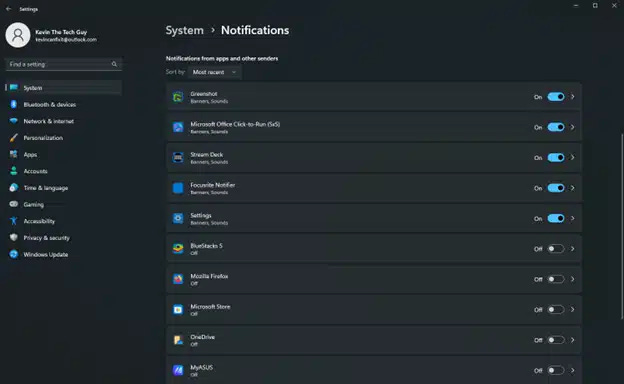
Out of the box, every installed app can show notifications in Windows 11 as little pop-up messages at the bottom right of your screen above the System Tray, which includes the clock and so forth.
To manage these notifications, first open up the Start Menu. Then click on “Settings”.
Head over to the System page and choose “Notifications” on the left-hand pane. As you can see above, there are sliders for each app you can enable or disable.
You can always change these later. These settings can be particularly useful for those who find notifications overwhelming or distracting.
Your Web Browser of Choice
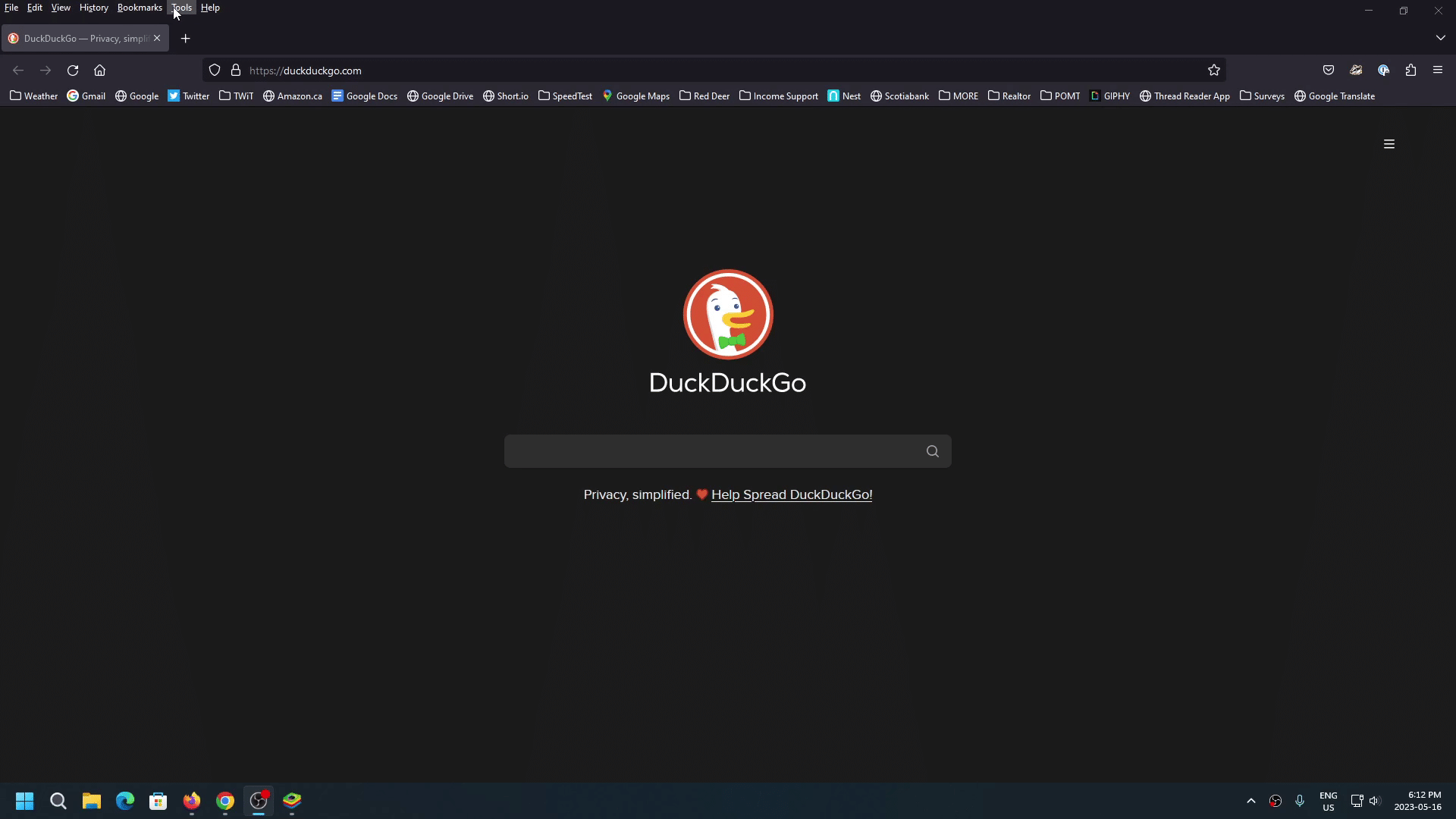
Microsoft includes Edge, its own browser, in Windows 11. This browser is usable, but ONLY after you change a bunch of settings, which I'll cover in a future video and blog post for paid subscribers.
I recommend using Firefox, Chrome, or even Brave. My main browser is Zen Browser, a fork of Firefox. Some websites don’t play nice with one or the other, so it’s good to have multiple at hand.
When you open your browser for the first time, you have the option to set it as the default. This means that whenever you click on a link, it will generally open in that browser.
PatchMyPC
With our computers now constantly connected to the Internet, any vulnerability in any program could potentially be used to access our computers, though most of the time, it’s unlikely and targeted. That said, keeping programs up to date better ensures our computers remain reliable and secure.
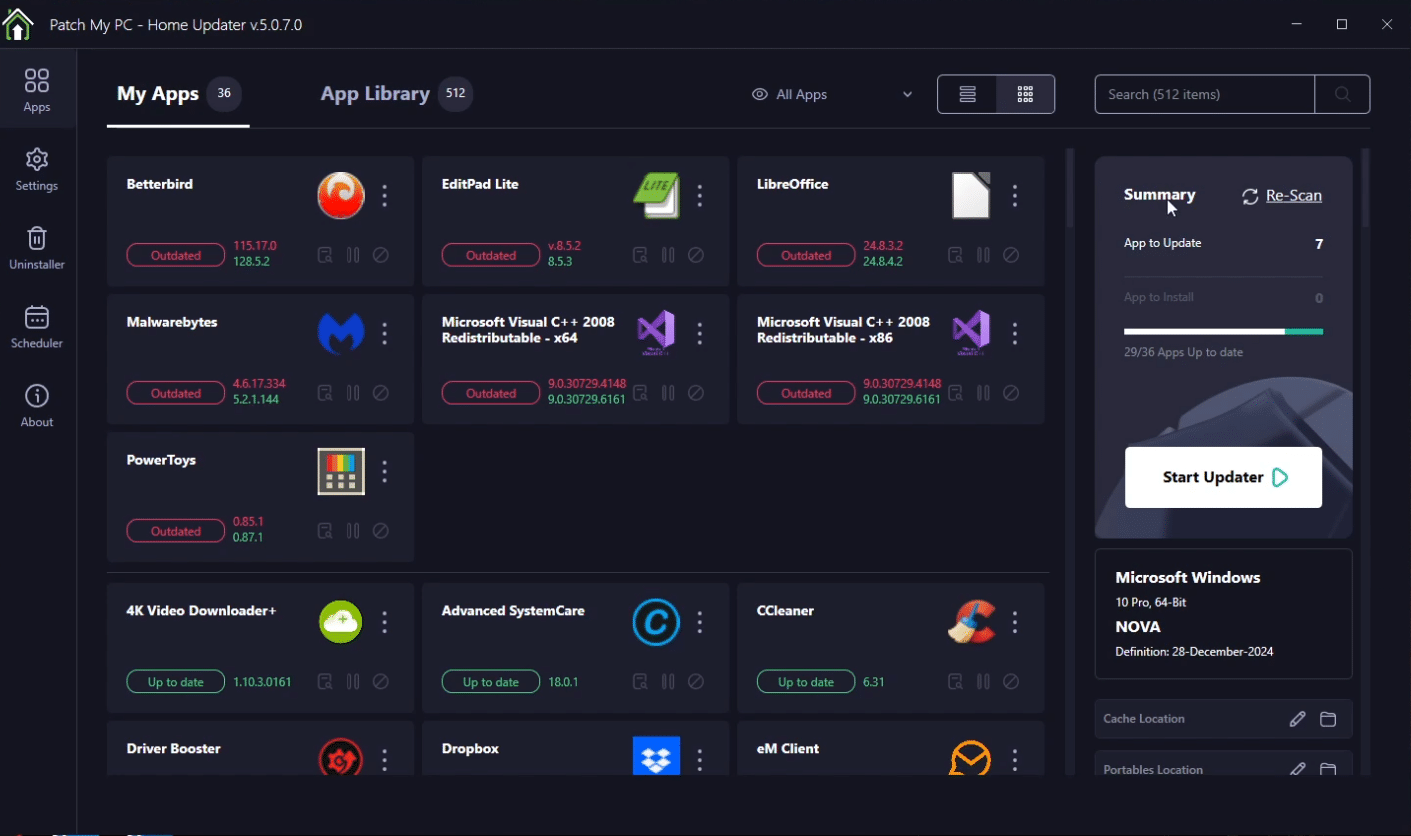
My go-to is PatchMyPC, an all-in-one installer for hundreds of the most commonly used programs. You can view my Kevin's Picks page about PatchMyPC here.
For many years, it was a portable installer, meaning you didn't need to install PatchMyPC on your computer to use it. They still have a version for that, the portable “.exe” version. The “.msi” version released in 2024 does need to be installed to be used, and that adds more functionality.
Thank you so much for reading this blog post! Your support makes my work possible.