

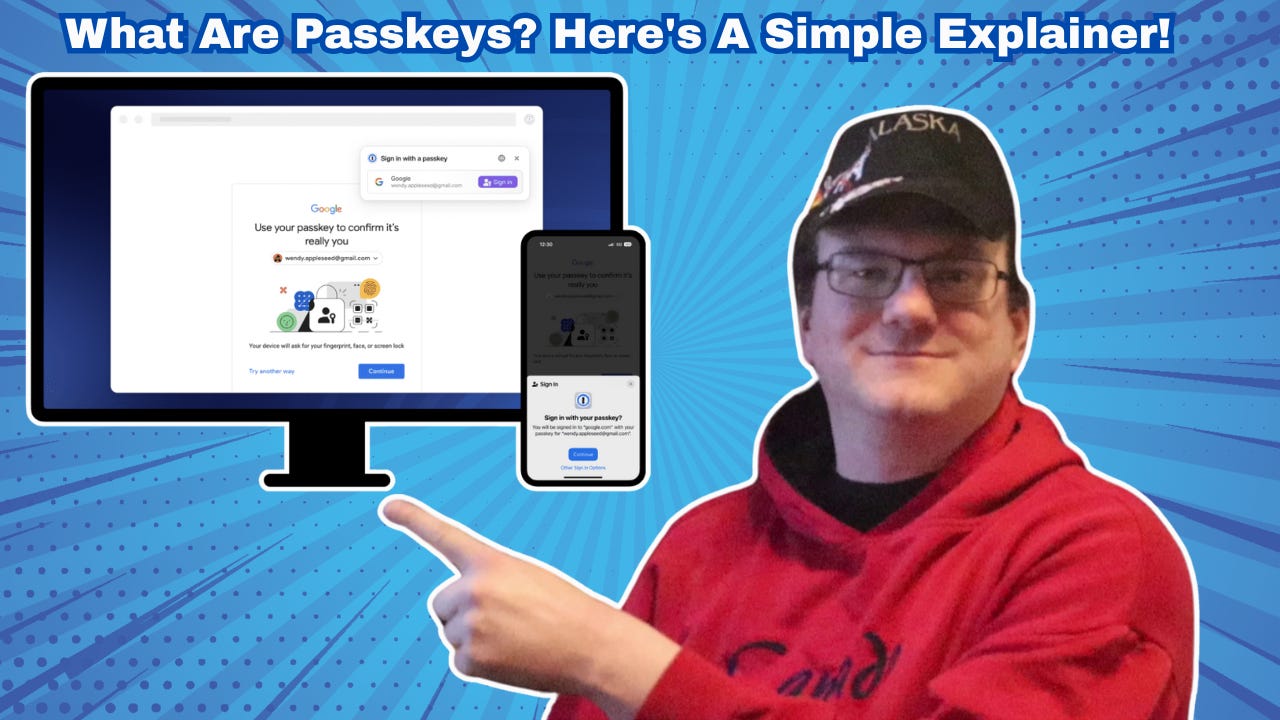
On a recent episode of *Rich on Tech*, Rich DeMuro was joined by Andrew Shikiar from the FIDO Alliance to talk about something a lot of us have been hoping for: a world without passwords. In their conversation, Andrew explained the problems with passwords, and why Passkeys are taking over. I feel it’s necessary to pass this along.
You’re going to want to read this.
Here is Google’s quick video about passkey:
Why Passwords Are on the Way Out
Don’t worry, passwords aren’t dying anytime soon. That said, according to Andrew, over 80% of data breaches still involve passwords. Why? Because many people either use weak ones or reuse the same ones across multiple accounts. Even password managers, while incredibly useful, are really just a necessary solution for an outdated system.
They’re still relying on the same password-based security model we’ve been using for decades.
The FIDO Alliance, which includes prominent companies such as Apple, Google, Amazon, and Microsoft, aims to replace passwords with a more secure and user-friendly alternative: passkeys.
However, this won’t happen overnight and will likely take many years.
What Exactly Is a Passkey?
A passkey is a type of login credential that uses cryptographic and encrypted key pairs. It’s made up of two parts:
A PUBLIC KEY that lives on the website or app you’re logging into. Yes, it’s public, but it’s useless without the private key.
A PRIVATE KEY that lives securely on your device and stays there, like your phone, tablet, or laptop.
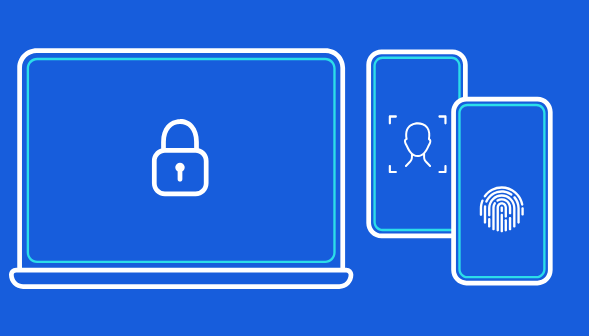
When you log in, you don’t type anything. You just unlock your device using your fingerprint, face, or PIN. Your device then verifies your identity and uses the PRIVATE key to securely talk to the PUBLIC key to sign in behind the scenes.
The result? A secure login that’s fast, phishing-resistant, and basically impossible to guess.
No password to remember. Nothing to type. No fake login page to accidentally fall for.
If you’ve got 12 minutes, here’s an excellent explainer by YouTuber Shannon Morse:
Or, jump to the part where she gets into Passkeys specifically. This is worth your time.
How You Use a Passkey in Real Life
If you’ve used Face ID or your fingerprint to sign in to a Google account or Apple service lately, you may have already used a passkey, without even realizing it.
Using a passkey means logging into websites with Face ID, your fingerprint, or a PIN instead of typing a password. Behind the scenes, your device securely matches a private key (stored on your device) with a public key (stored on the website).
Nothing gets typed or sent, so it's safer and faster. No passwords to steal, remember, or mistype. Passkeys can sync across your devices or be used with hardware keys like YubiKey. They're not yet supported everywhere, but they’re a big upgrade when you can use them over traditional logins.
source: Google
Sharing Passkeys Across Devices
Passkeys can be synced across your devices, but that’s more for backup purposes. It’s important to realize that each Passkey is tied to each specific device, though it can be shared across platforms via QR codes.
For example:
If you’re logging into a website on your laptop, and your passkey is stored on your phone, a QR code might pop up.
You scan that QR code with your phone, unlock it, and boom—you’re logged in on your computer.
You can even set up multiple passkeys for the same account, such as one on your iPhone, and another on your Windows PC.

What Happens If Your Device is Lost, Stolen, or Damaged?
Rich asked Andrew about this, and he had a good answer: most platforms that support passkeys back them up securely.
As long as you have another device that has its own Passkey for that account, you won’t be locked out. Then log in to that account and delete the passkey you no longer need or have, and create a new passkey on your new phone, for example.
But that process depends on people setting up passkeys on their different devices for the same accounts.
It’s a bit of work up front, but it’s a lot easier (and safer) than trying to remember or reset a lost password.
Where You Can Try Passkeys Right Now
According to Andrew, about half of the top 100 websites already support passkeys, and more are adding support every month. You’ll usually see an option to use or create a passkey when you log in or update your security settings.
Major apps and tools like:
iCloud Keychain (Apple): Seamless for Apple users, free, secure, easy autofill. Apple-only, limited passkey management features.
Google Password Manager: Works on Android, Chrome, Windows, and macOS; free and easy to use. Basic web interface, less intuitive outside Google ecosystem. Tied to your Google account.
Dashlane: Cross-platform, user-friendly, zero-knowledge encryption. Requires a paid plan, newer to passkeys.
1Password: Very polished, user-friendly, cross-platform, strong team features. Subscription required immediately, some features are still rolling out. No free tier.
Bitwarden: Open-source, free tier, great for privacy-focused users. Passkey support is still early, and less user-friendly for beginners.
Windows Hello: Windows Hello is great for logging in with Passkeys on Windows devices, but it only works within the Microsoft ecosystem, and can’t be used as a password manager.
Third-party password managers like 1Password, Bitwarden, or Dashlane work across all your devices, store both passwords and Passkeys in one place, and give you more flexibility, backup, and features, making them a better choice if you use a mix of platforms.
Bottom Line
Passkeys are faster, easier, and way more secure than passwords. They’re backed by nearly every major tech company, and they’re already quietly rolling out across the web. If you see an option to use a passkey the next time you log into a website, try it. You might be surprised how simple it is.
Other login methods are still available, so don’t get rid of those, but your passkey can become the default option, with the others as a backup. I would suggest adding a 2FA option, such as the Authy app (one-time app-based codes), and securing your password using a password manager, because bad guys always target the weakest link.
To be clear, passwords aren’t dying anytime soon. Passkeys are just a better option.
This post is exclusive to paid subscribers. Thank you for supporting my work! I literally can’t do this without you!