


In this Quick Tip, I will show you how to "activate" any Window or app so you can use it without first clicking it. This is particularly useful for login details on a web page. You start typing or copy and paste, only to realize it didn't work because the app wasn't selected.
Technically, this is part of the Accessibility tools (Ease of Access in Settings), but it is honestly useful for everyone. Simply select a Window or app to use by hovering your mouse on it.
By default, you must click the window or app to select it before interacting with it. This is a tiny change, but it makes a huge difference.
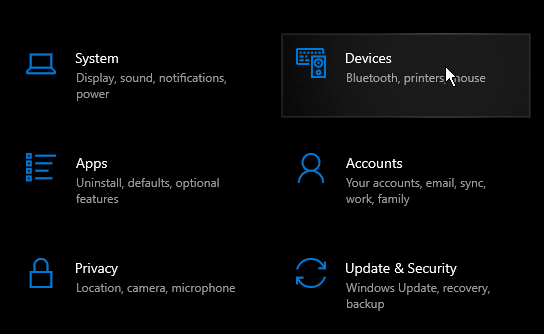
To change this setting, open Settings. Click on "Devices".
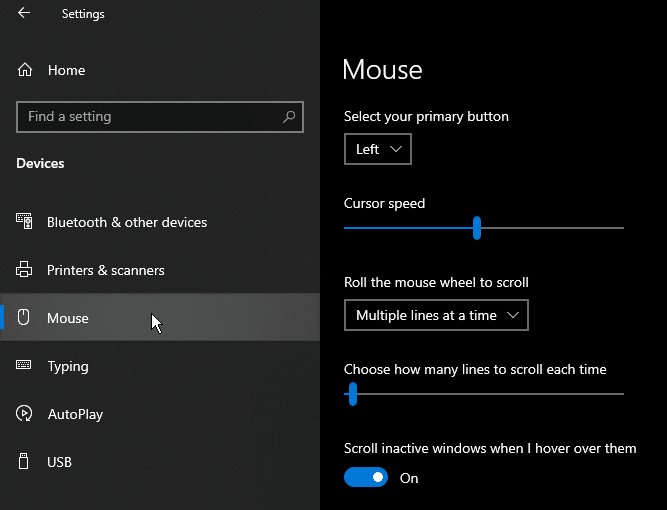
Click "Mouse" on the left. Then, enable the switch under "Scroll inactive windows when I hover over them".
I hate the wording there, but that's what it does.
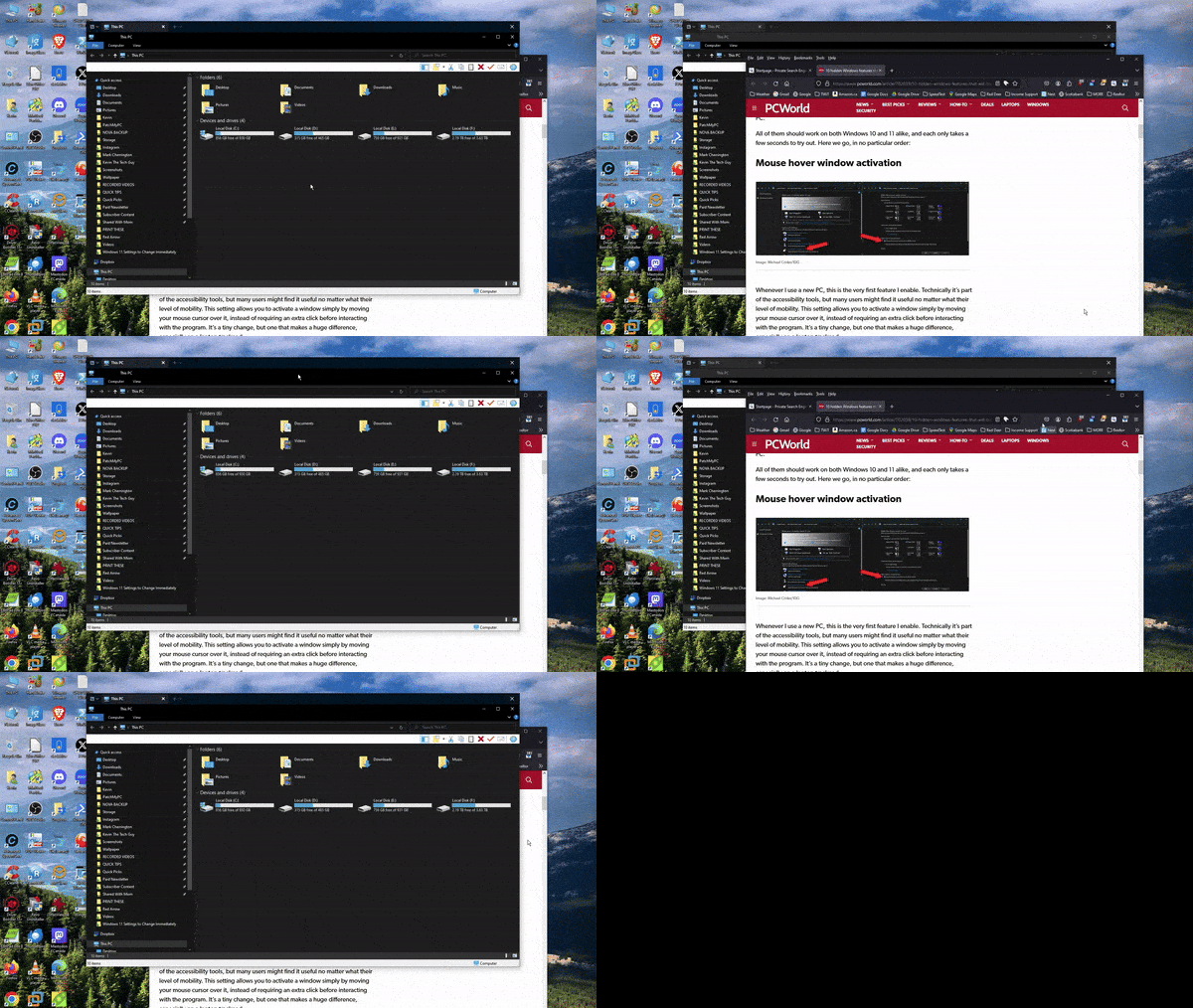
Here's what that looks like:
Thank you so much for reading this blog post! You can keep up to date with my latest posts right here on KevinTheTechGuy.ca, or via the RSS feed. Please consider supporting my wor, or using Buy Me a Coffee! Your support makes my work possible.