


In this Quick Tip, I'm going to describe how to change your Windows PIN to a much more secure password. By default, Windows 11 asks for a PIN to login to your account, but this is a convenience at the sacrifice of good security. Better than nothing, but barely.
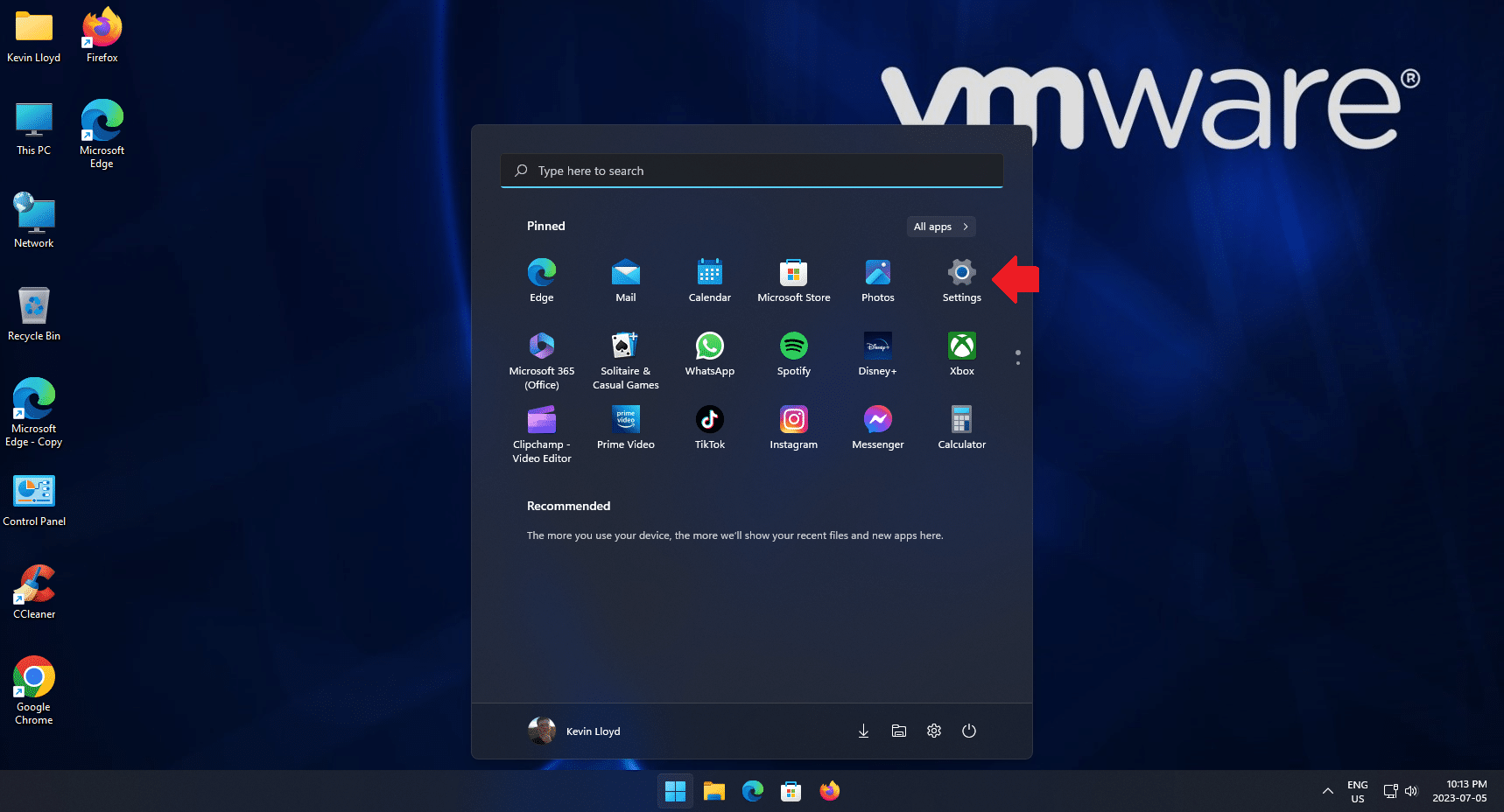
In the Start Menu, click on Settings.
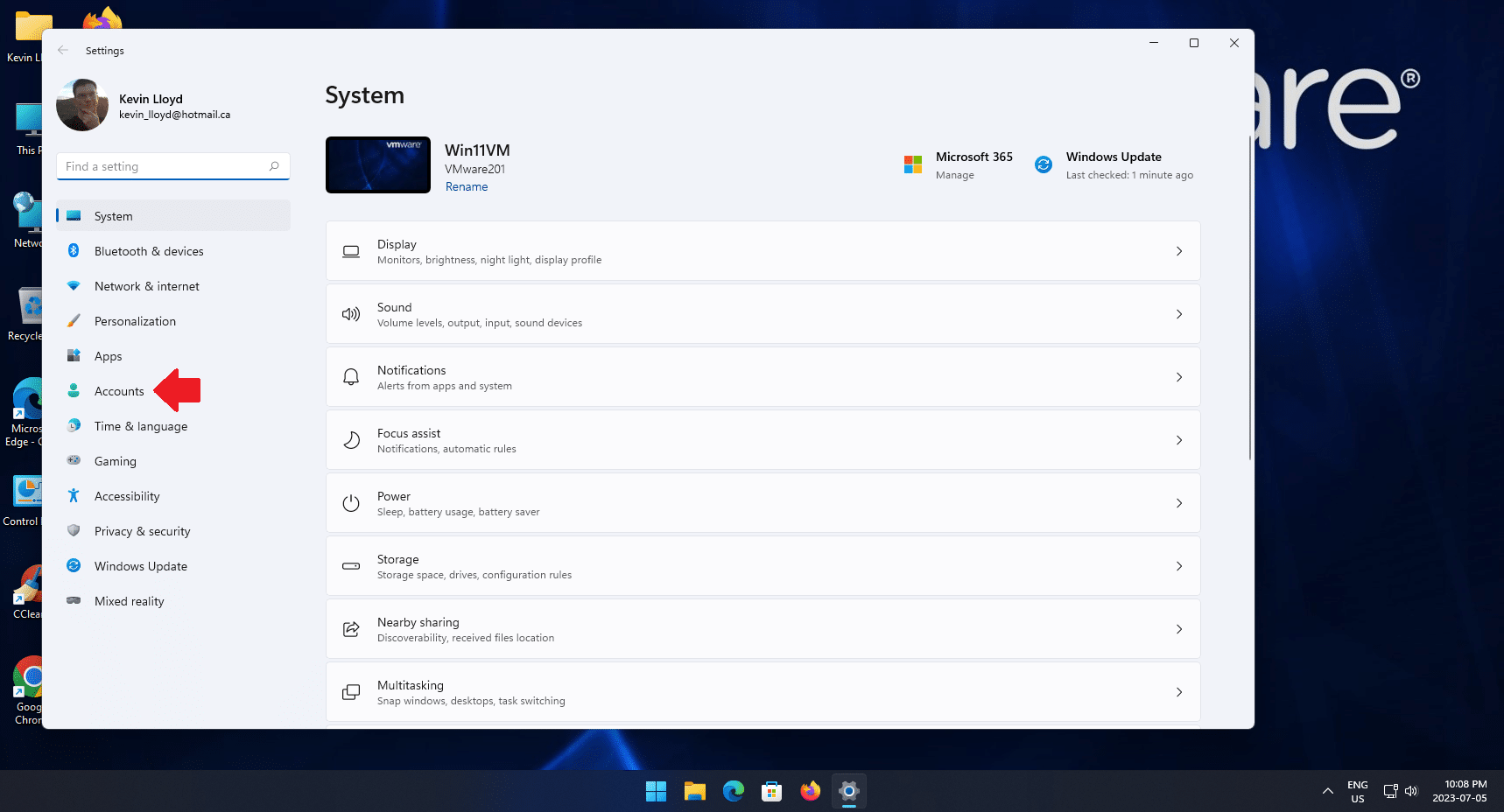
Then click “Accounts” on the left.
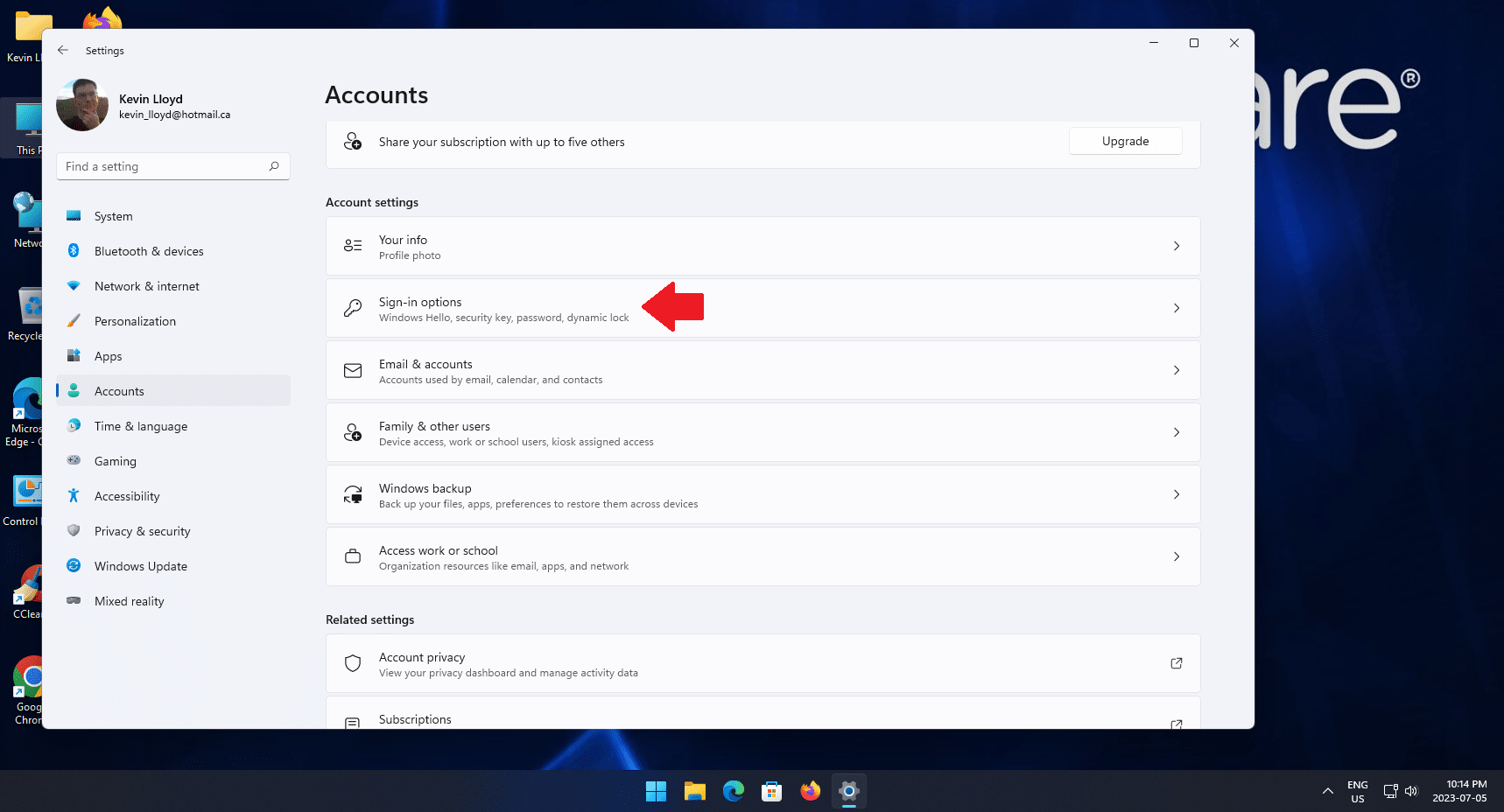
On the Account page, click "sign in options"
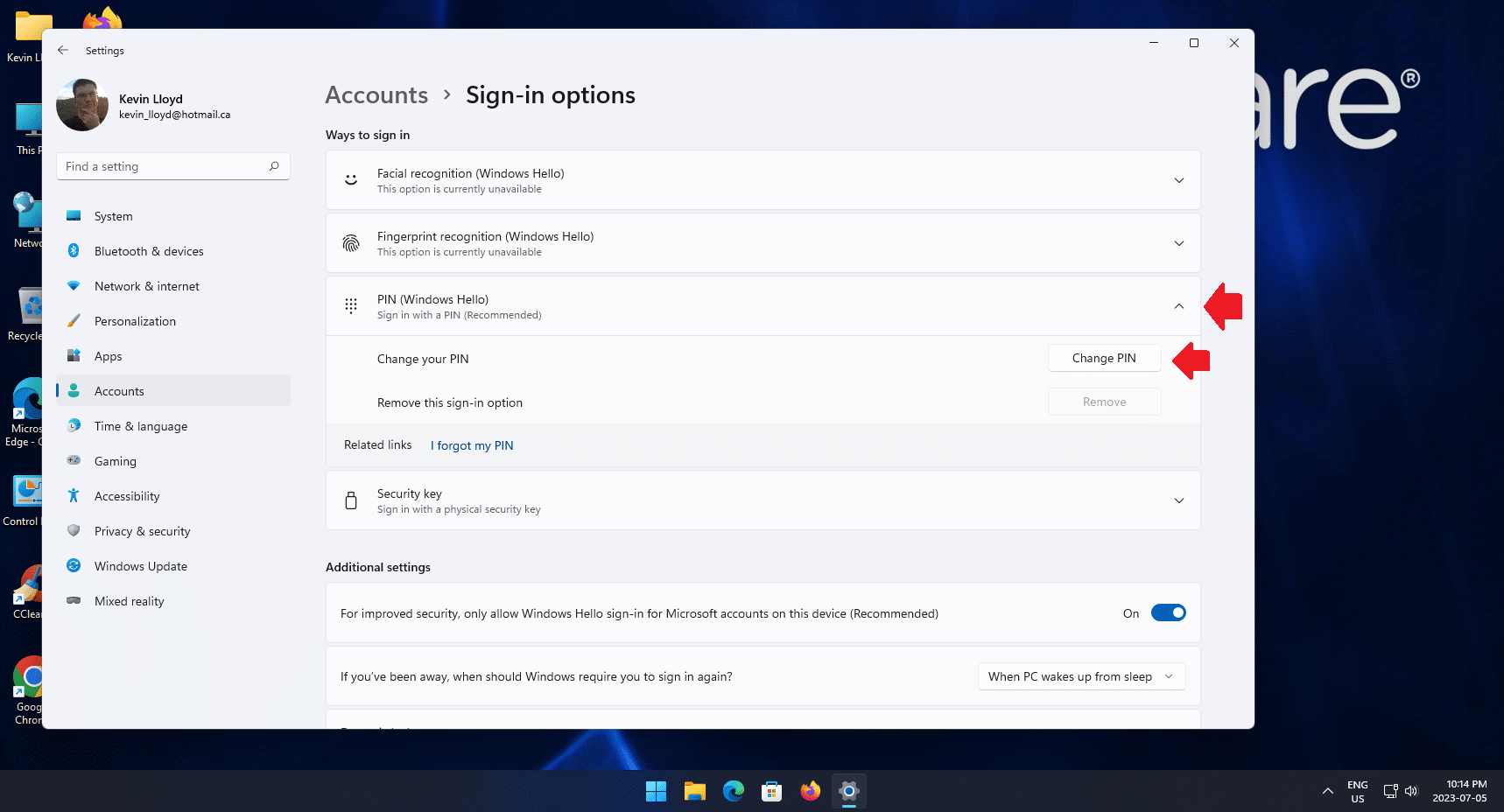
Then click “PIN (Windows Hello)” to expand those options.
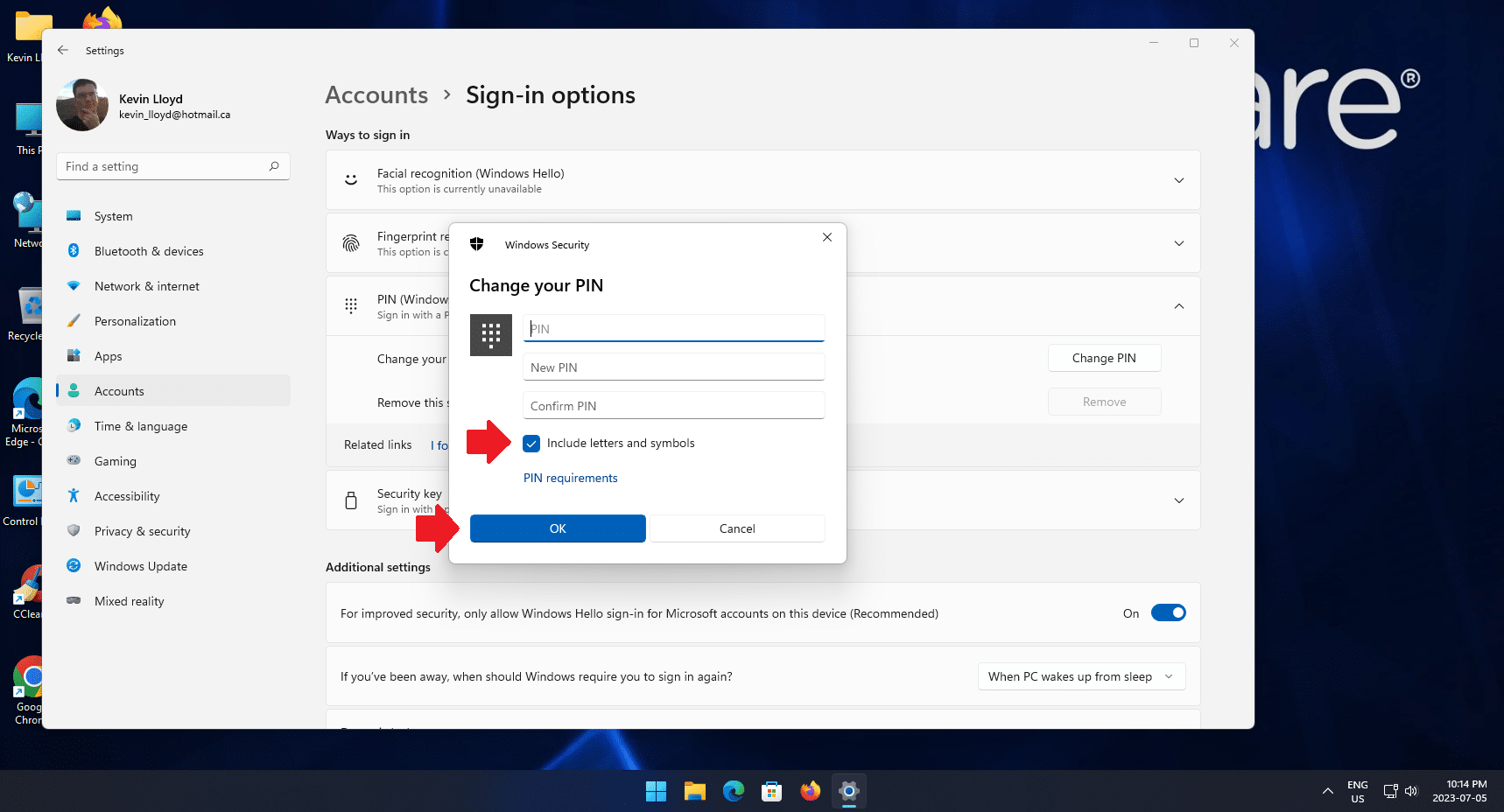
Click the "Change PIN" button, and ensure the checkbox next to "Include letters and symbols" is checked. Then enter your new password.
There isn't a requirement (there should be), but I recommend 10-20 characters. Ten to twenty characters gives you real breathing room, especially if you use a passphrase that’s easy for you to remember but hard for anyone else to predict.
Windows 11 pushes a PIN because it’s fast and easy, not because it’s especially secure.
A PIN is typically short, numeric, and designed for convenience on a trusted device. That’s fine for quick access, but it’s a weak form of protection if someone gains physical access to your computer or your account credentials. Turning that PIN into a full password that allows letters and symbols immediately raises the bar.
Length matters just as much as complexity. A longer password is dramatically harder to guess or brute-force than a short one, even if Windows doesn’t say so. It’s a small change in Settings, but it shifts your login from “bare minimum” security to something that actually protects your account.
Thank you so much for reading this blog post! You can keep up to date with my latest posts right here on KevinTheTechGuy.ca, or via the RSS feed. Please consider supporting my work, or using Buy Me a Coffee! Your support makes my work possible.