


In this Quick Tip, I'm going to show you how to get rid of the fairly new and incessant "Use your Google Account to sign in" prompt on a given website. It's in your face and hard to ignore. You can still choose to sign in with your Google account if you want to.
Not even UBlock Origin seems capable of defeating this pop-up yet.
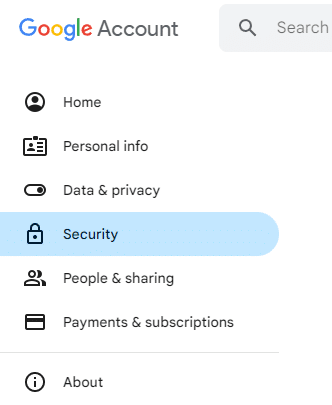
1. Go to "My Account" : "Security" (https://myaccount.google.com/security).
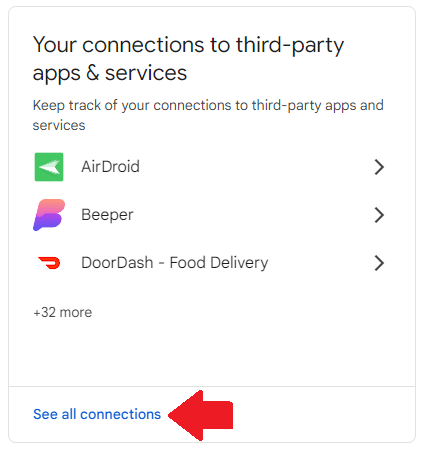
2. Click on the "See all connections" link in "Your connections to third-party apps & services".
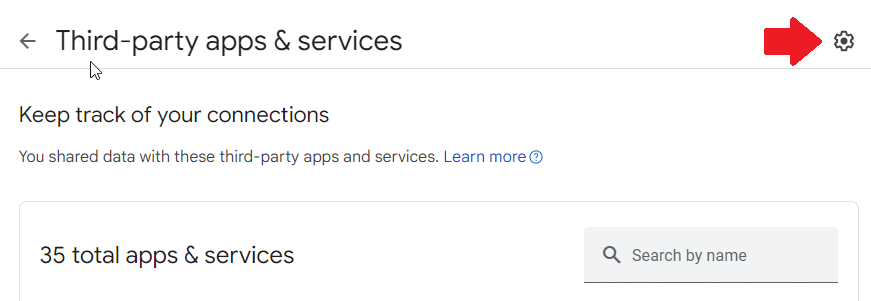
3. Click on the gear at the top of the "Third-party apps & services" page.
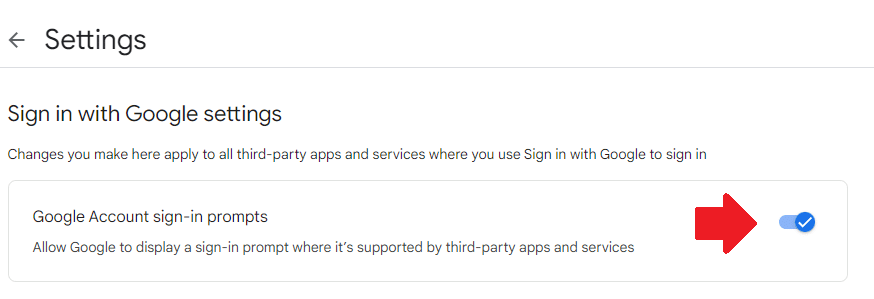
4. Disable the "Signing in with Google" prompt.
Thank you so much for reading this blog post! You can keep up to date with my latest posts right here on KevinTheTechGuy.ca, or via the RSS feed. Please consider supporting my work, or using Buy Me a Coffee! Your support makes my work possible.