

Congratulations on your new computer! It’s always exciting to bring a new system home to replace the aging one that has seen better days.
Now, to get the most out of your system and get more done! Since it’s a new computer, it most likely came with Windows 11. Here are the things I recommend doing to set up your new PC!
This is Part 1. For more inspiration on making Windows 11 more usable, check out the other blog posts in this series!
If you appreciate and find value in this blog post series, please consider supporting my work.
Blog Posts in This Series:
Factory Reset Windows 11

If your computer came with Windows 11, possibly from a big box store, it's likely chalk full of bundled partner software and configuration settings that they thought you might like. I don't like when someone messes with my computer without asking, and I have no way of knowing what they've done. Perhaps you feel the same way?
The very first thing to do when setting up your new computer is to Reset Windows 11. Choose the Cloud Download option, along with "Erase Everything", and it'll download and fresh, clean, updated, and more importantly unaltered version of Windows that you'll be much happier with.
This step isn't mentioned much in other guides I've seen, but for me it's an absolute no-brainer, and I strongly recommend doing it.
Windows Update
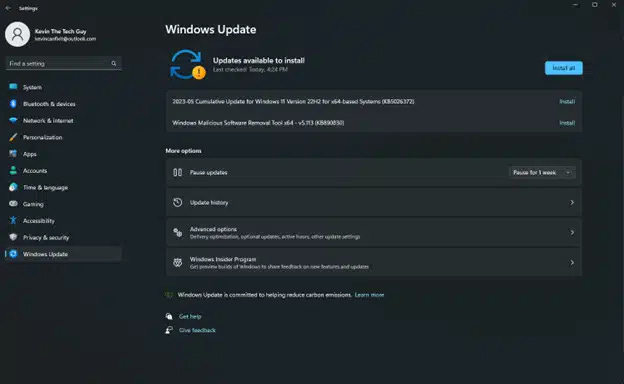
Your new computer may have been sitting on the store shelf or in a warehouse for a little while. The latest Windows updates likely haven’t been applied, so it’s very important that they are. Our computers are constantly internet-connected, and having the latest security updates really matters!
To access Windows Update, left-click the Start Menu once. Then click Settings or the gear icon. On the bottom left, click Windows Update and click the “Check for Updates” button. When those updates are done, click the “Restart” button.
After restarting your PC, please log back into Windows Update and log in again. Repeat this process until it says, “You’re up to date.”
Big updates like Windows 11 version 24H2 (second half of 2024) are listed under “optional”. Optional updates do not appear if none are available.
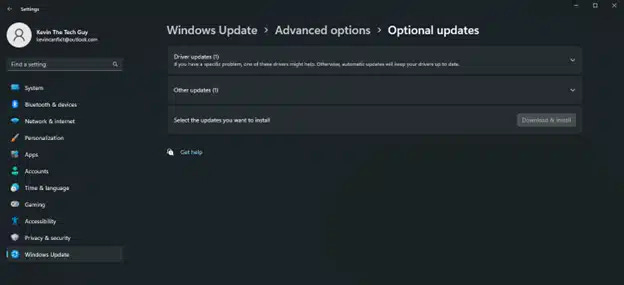
Occasionally you’ll need to manually go into Advanced Options to see them. I do recommend these updates but required updates should be completed first. After you install big updates like 23H2, check for updates again and ensure Windows is fully up to date.
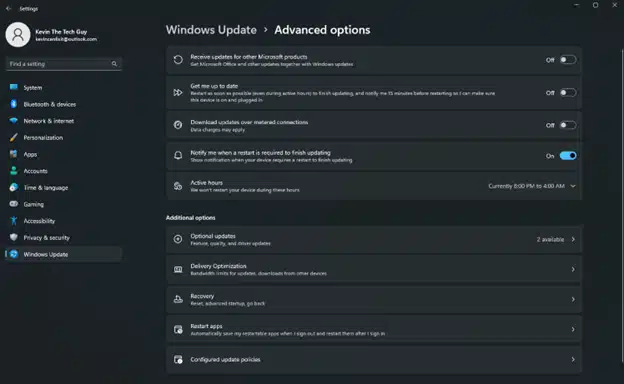
I also think it’s worth checking out Windows Update's Advanced Options and turning on two settings: “Receive updates for other Microsoft products” and “Notify me when a restart is required to finish updating.”
The latter is the most important; otherwise, Windows is very inclined to automatically download and install updates, which can automatically restart your computer, even if you’re in the middle of something.
Microsoft Store App Updates
This is a step commonly missed by people, even those in tech support. Windows 11 comes with a few apps from the Microsoft App Store, so be sure to open that and check for updates there as well. To do that, left-click the Store app once to open it.
Click on “Library” in the bottom left corner
Click “Get Updates” and wait a moment.
Almost all pre-installed apps will have updates, so this process might take a little while.
Taskbar and Start Menu

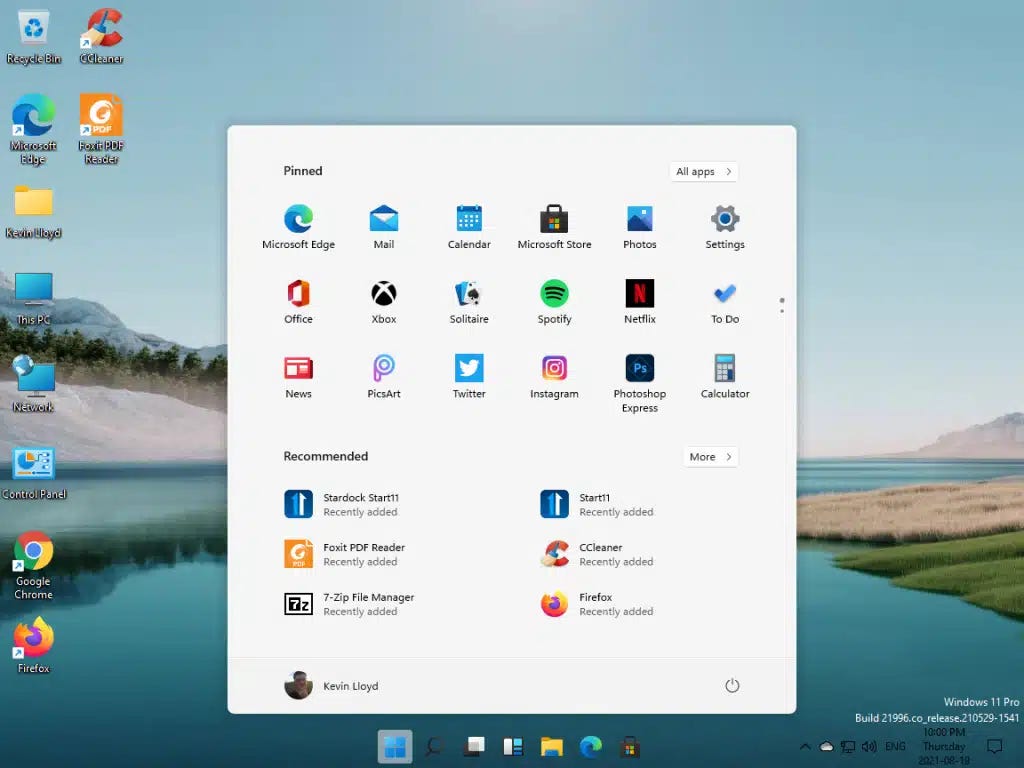
The Taskbar is the row of icons at the bottom of the screen in the centre. On the left, it starts off with the Start Menu icon. Besides that, you’ve got search, then File Explorer, Microsoft Edge, the Microsoft App Store, and more.
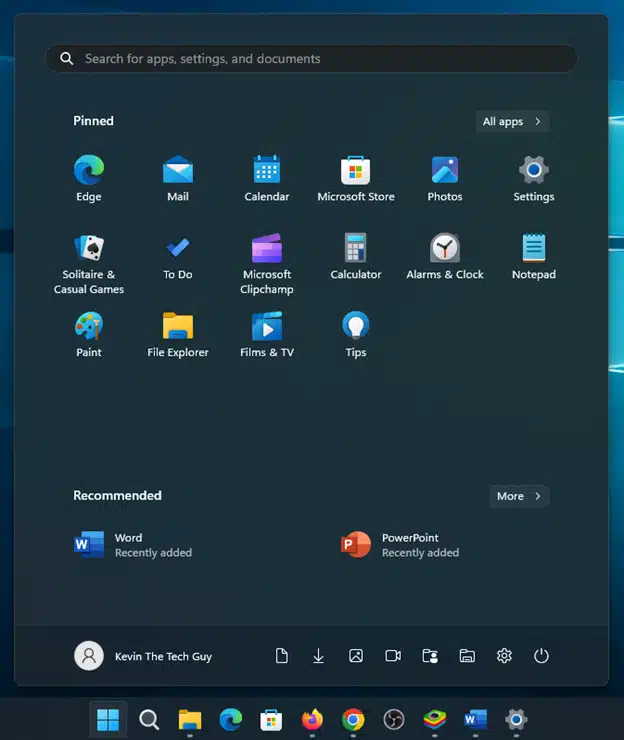
The Start Menu in Windows 11 isn’t great out of the box, so to speak. It has a lot of unused space, a “Recommended” area that also contains app ads, and a tiny “all apps” button you can click to see a list of installed programs and apps.
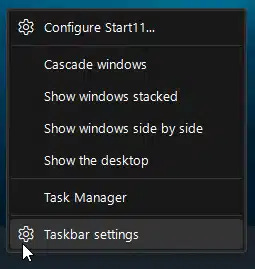
You can modify the Start Menu to make it somewhat more useful. Right-click an empty area of the Taskbar and left-click “Taskbar Settings” once. Then, left-click “Personalization” on the left and click “Start” on the right. You can change how the Start Menu looks to some extent here.
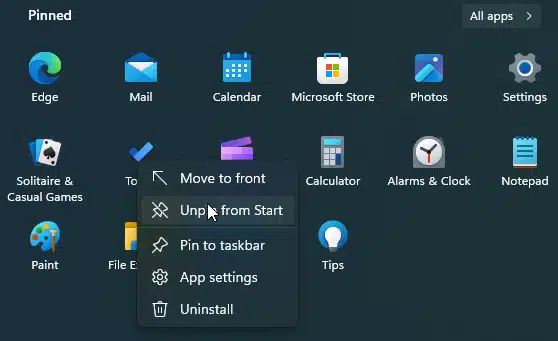
You can change which apps are “pinned” in the Start Menu itself and even uninstall them. Simply right-click any icon and select from the options.
I strongly recommend replacing the existing Start Menu with a reasonably priced alternative called Start11 from Stardock. It’s $7 for life and is the best investment you can make in using Windows 11.
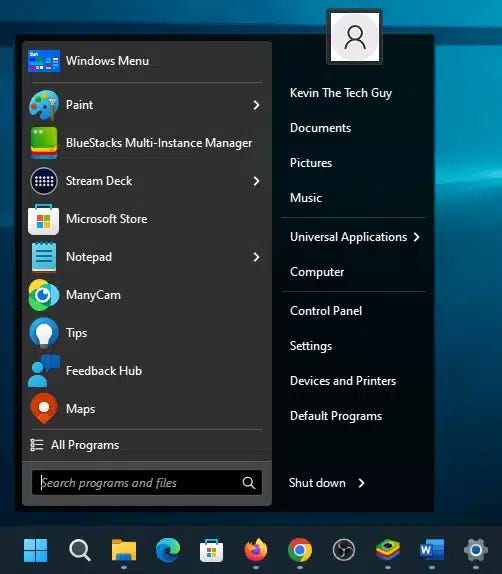
Alternatively, Open Shell is another option and is completely free.
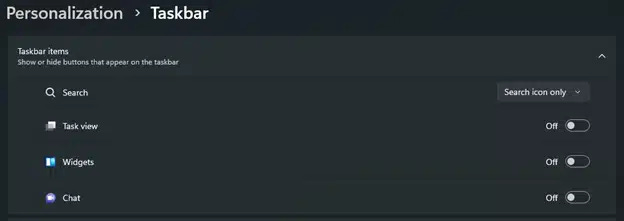
To customize your Taskbar further,
Go to “Settings”, “Personalization”
Oon the “Taskbar” page, turn off any switch for the items you don’t want to see or use.
This includes Widgets, Chat, and more. You’ll find more options when you scroll down as well.
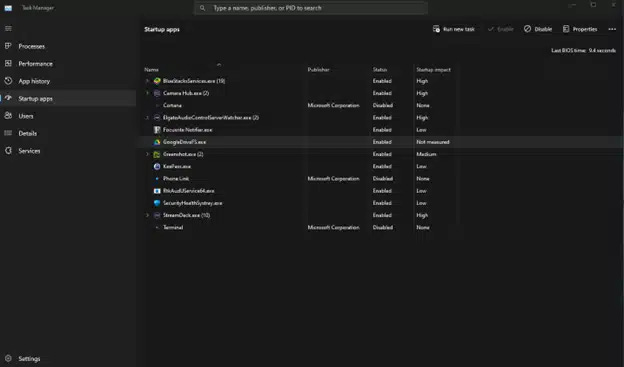
In the next blog post in this series, I'll talk about customizing your desktop icons, removing pre-installed software, and disabling Startup Items.
Thank you so much for reading this blog post! Your support makes my work possible.
Thanks so much for this article, Kevin! I recently got Windows 11 for the first time, and your guide is exactly what I needed.